




Dashboards in Azure are a great way to help you organise and view your resources in the portal. They can help you monitor your resources quickly in one location.
You can build your dashboard through the Azure portal, share dashboards between users or you can export a configured dashboard as a JSON file and then share it widely.
In this blog post, I want to show you how you can deploy a dashboard JSON file to your Azure environment using Terraform.
Pre-requisites
- Azure subscription
- Terraform installed and configured on your machine
- Azure Dashboard
Create a new project folder
In order to deploy the Terraform files and dashboard we want to create a new folder to store our files in.
Navigate to the location where you want to store the files and create a new folder.
Within the new folder add in your dashboard JSON file. I am going to use the Azure Arc Windows/Linux Dashboard that I created recently. If you don’t have a dashboard to use you can grab a copy of the dashboard here.
Modify the dashboard JSON file
When you create a dashboard in Azure, you have the option to export it and when you do it creates a JSON file for you. This JSON file is in an ARM template format and we need to modify it slightly to be able to deploy it via Terraform.
Open up the JSON file within your favourite editor, I am going to use VS Code.
The first line you want to delete and remove from the JSON file is line two.

We then need to scroll down to the bottom of the file, we want to delete lines 210 to 216. The whole section that has name, type, location, tags and api version needs to be deleted. Ensure you also delete the comma on line 209 and any trailing open brackets.
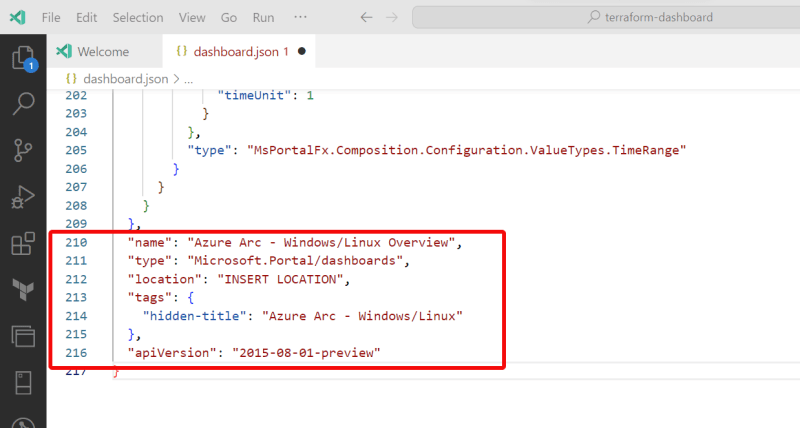
Save the changes to the file.
Create the Terraform deployment
Create a new file within your editor, and call it “main.tf”, we are going to use this to define our Terraform to help deploy the dashboard.
Below is the Terraform configuration you want to copy into your “main.tf” file.
# Azurerm Provider configuration
provider "azurerm" {
  features {}
}

module "dashboard" {
  source  = "kumarvna/dashboard/azurerm"
  version = "1.1.0"

  # This module will not create a resource group, provide the name and location of an existing resource group.
  resource_group_name = "azurearc"
  location            = "westeurope"

  # Dashboard configuration
  dashboards = [
    {
      name           = "Azure-Arc-Windows-Linux-Dashboard"
      json_file_path = "./dashboard.json"
      variables = {
        "title" = "Azure-Arc-Windows-Linux-Dashboard"
      }
    }
  ]

  # Adding TAG's to your Azure resources
  tags = {
    ProjectName  = "azurearc"
    Env          = "prod"
  }
}
Within the Terraform file we are calling on the Dashboard Terraform module to help us deploy the dashboard.
When using the above Terraform file you need to have already deployed your resource group, this file won’t create the resource group for you.
Within the “Dashboard Configuration” section of the file let’s break it down. The line where you define the " Name" defines the name of the resource.
The "json_file_path" is where you reference the JSON file that has the dashboard file you want to deploy. My JSON file resides in the same folder as my Terraform file, so I have configured it as such. If your JSON file lives elsewhere you will need to change the file path.
The "title" section defines the name of the dashboard.
Deploy the Terraform
Now that we have the Terraform file created and our dashboard file available we want to deploy it.
Open up your command prompt and ensure you are connected to the appropriate Azure subscription you want to deploy the dashboard within.
Now type in:
Terraform init
This command prepares the working directory for use with Terraform, it will initialise the backend, and install any child modules or plugins.
Once completed type in:
Terraform plan
This command compares the current configuration and the prior state data. It will show you what will happen if you run the command within your environment.
If you are happy with the plan the next command is the actual deployment, and that is:
Terraform apply -auto-approve
Including the -auto-approve command will avoid us having to type in yes to continue with the deployment.
After a few minutes the deployment should complete successfully and your dashboard will be deployed.
Conclusion
Azure dashboards are a great way to monitor and collate data about your Azure resources.
Being able to automate the deployment of a pre-created dashboard via Terraform is important for efficiency when managing your overall Azure environment.
Happy deployments!
SOCIAL SHARE CARD GENERATOR