Posted by Nikita Namjoshi, Machine Learning Solutions Engineer
Data parallelism is one of the concepts you will learn about in this article.
Why Distributed Training?
Every data scientist and machine learning engineer has experienced the agony of sitting and waiting for a model to train. Even if you have access to a GPU, with a large dataset it can take days for a large deep learning model to converge. Using the right hardware configuration can reduce training time to hours, or even minutes. And a shorter training time makes for faster iteration to reach your modeling goals.
If you have a GPU available, TensorFlow will use it automatically with no code changes required. Similarly, TensorFlow can make use of multiple CPU cores out of the box. However, if you want to train with two or more GPUs then you’ll have to do a bit of extra work. This extra work is necessary because TensorFlow needs to know how to coordinate the training process across the multiple GPUs in your runtime. Fortunately, with the , you’ll find the code to train a . If you execute the cells in the notebook and train the model, you’ll notice that the number of steps taken in each epoch is 89, and each epoch takes around 100 seconds. Make note of these numbers; we will come back to them later.
Multi-GPU Training
You can access a single GPU in colab, but your luck stops there if you want to use multiple GPUs. Moreover, while a Colab notebook is great for quick experimentation you’ll likely want a more secure and reliable set up that offers you more control over your environment. For that, you can turn to the cloud.
There are many different ways to do distributed training on GCP. Picking the best option for your use case will likely involve different considerations if you are a student/researcher running experiments, versus an engineer at a company training models in a production workflow.
In this article you will use the GCP . TensorFlow Cloud can automate many of the steps described in this article; however, we will walk through the steps here so you can get a deeper understanding of the key concepts involved in distributed training.
In the following section, you’ll learn how to modify the single GPU training code using the tf.distribute.Strategy API. The resulting code will be cloud platform agnostic so you could run it in a different environment without any changes. You can also run the same code on your own hardware.
Prepare Code for Distributed Training
The first step in using the tf.distribute.Strategy API is to instantiate your strategy. In this tutorial, you will use
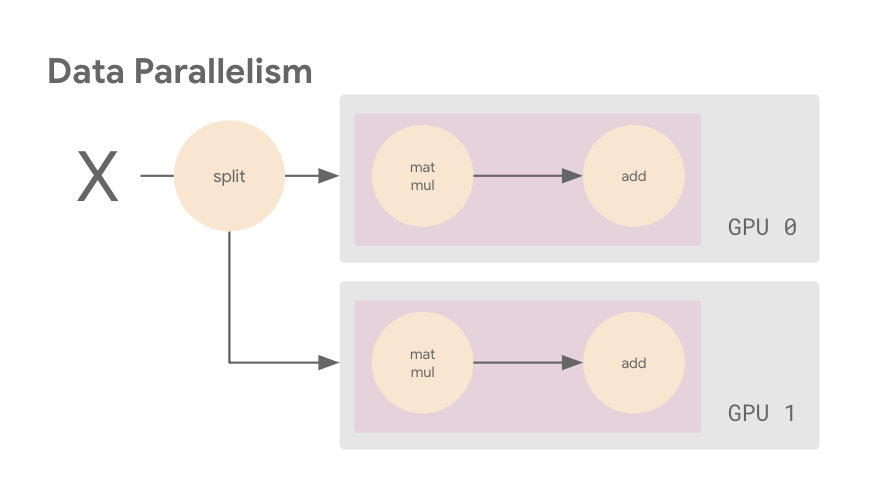
We want a way of executing this computational graph such that we can leverage two GPUs. There are multiple different ways we can achieve this. For example, you could put different layers of your model on different machines or devices, which is one flavor of model parallelism. Alternatively, you could distribute your dataset such that each device processes a portion of the input batch on each training step with the same model, which is known as data parallelism. Or you might do a combination of both. Data parallelism is the most common (and easiest) approach, and that’s what we’ll do here.
The next image shows an example of data parallelism. The input batch X is split in half, and one slice is sent to GPU 0 and the other to GPU 1. In this case, each GPU calculates the same ops but on different slices of the data.
.
With the two easy steps of instantiating MirroredStrategy, and then wrapping your model creation within the strategy scope, TensorFlow will do the heavy lifting of distributing your training job across your GPUs through data parallelism and synchronous gradient updates.
The last change you will want to make is to the batch size.
BATCH_SIZE = 64 * strategy.num_replicas_in_sync
Recall that in the single GPU case, the batch size was 64. This means that on each step of model training, 64 images were processed, and the number of resulting steps in each epoch was the total dataset size / batch size, which we noted previously as 89.
When you do distributed training with the tf.distribute.Strategy API and tf.data, the batch size now refers to the global batch size. In other words, if you pass a batch size of 10, and you have two GPUs, then each machine will process 5 examples per step. In this case, 10 is known as the global batch size, and 5 as the perreplica batch size. To make the most out of your GPUs, you will want to scale the batch size by the number of replicas, which is two in this case because there is one replica on each GPU.
You can make these code changes yourself, or simply use this
. If you are working in a brand new project, then this process will likely also prompt you to connect the billing account you created. If you are using a GCP project that you have already worked with, then most likely the Compute Engine API will already be enabled. Request Quota
Google Cloud enforces quotas on resource usage to prevent abuse and accidental usage. If you need access to more of a particular resource than what is available by default, you’ll have to request more quota. For this tutorial, we will use the NVIDIA T4 GPU. By default, you get access to one T4 GPU per location, but in order to do distributed training you’ll need to request quota for an additional GPU in a location.
In the GCP console, scroll to the hamburger menu on the left side and navigate to IAM & Admin > Quotas
When you find the NVIDIA T4 GPU resource in the list, go ahead and click on ALL QUOTAS for that row.
Fill in your contact details in the Quota changes menu and then set your New Limit to 2. Then click Done when you’re finished.
, which can be found using the same hamburger menu as before in the console and scrolling to Artificial Intelligence > AI Platform > Notebooks
You’ll need to enable the API if this is your first time using the tool.
is a TensorFlow distribution optimized for GCP.
Note that even after you’ve created an AI Platform Notebook instance, you can change the hardware (for example adding or removing GPUs). Should you need to do this in the future, simply stop the instance and
When you execute the model.fit cell, you should notice that the number of steps per epoch is now 45, which is half of what it was when using a single GPU. This is data parallelism in action. With a global batch size of 64 * 2, your CPU is sending batches of 64 images to each GPU. So while previously the model only saw 64 examples in a single step, it now sees 128 examples on each step and thus each epoch takes less time. Previously each epoch took around 100 seconds, and now each epoch takes around 60 seconds. You’ll notice that adding a second GPU does not cut the time in half, as there is some overhead involved in synchronizing the gradients. The benefits will be more noticeable with a larger dataset (Cassava only has 5656 training images). Additionally, there are lots of techniques you can use to get even more benefit from that second GPU, such as making sure your input pipeline isn’t a bottleneck. To learn more about making the most of your GPUs, see the . The Deep Learning VM images are Compute Engine virtual machine images optimized for data science and machine learning tasks. In our example we used the TensorFlow Enterprise 2.3 image, but
And you should see an instance with the same name as the notebook you created earlier. Because this is a GCE instance, we can ssh into the machine and run the code there.
to install the SDK and connect to your project. SSH into the VM
Once the SDK is installed and configured, you can use the following command in your terminal to ssh into your vm. Just be sure to change the instance name and project name.
If you run the command nvidia-smi on the vm, you’ll see the two T4 GPUs we provisioned earlier.
instead of using the AI Platform Notebooks UI like we did in this tutorial.
When you’re finished experimenting, do not forget to shut your instance down. You can do this by selecting the instance from the Notebook instances page, or GCE Instances page in the console UI and clicking STOP at the top of the window. Shutting down the instance is very important as you will be billed a few dollars for every hour that it is left running. You can easily stop your instance, then restart it when you want to run more experiments and all of your files will still be there.
Take Your Distributed Training Skills to the Next Level
In this article you learned how to use MirroredStrategy, a synchronous data parallelism strategy, to distribute your TensorFlow training job across two GPUs on GCP. You now know the basic mechanics of how to set up your GCP environment and prepare your code, but there’s a lot more to explore in the world of distributed training. For example, if you are interested in building a distributed training job into a production ML pipeline, check out the , and also learn how to use a strategy with a , and a guide on how to do performance debugging with the TensorFlow Profiler to make sure you are maximizing utilization of your GPUs.
Vollständiger Original-Bericht
Ausführliche Details, Code-Beispiele & Hersteller-Stellungnahme auf blog.tensorflow.org.

SOCIAL SHARE CARD GENERATOR