Azure Static Web Apps is a service that automatically builds and deploys full stack web applications to Azure from a code repository (either Github or Azure Devops).
Prerequisites
- Have an Azure Account. If you do not have one, you can create an account .
, search for Static Web Apps and select the Static Web Apps service in the dropdown.

- Select
CreateorCreate static web appbutton has shown below.

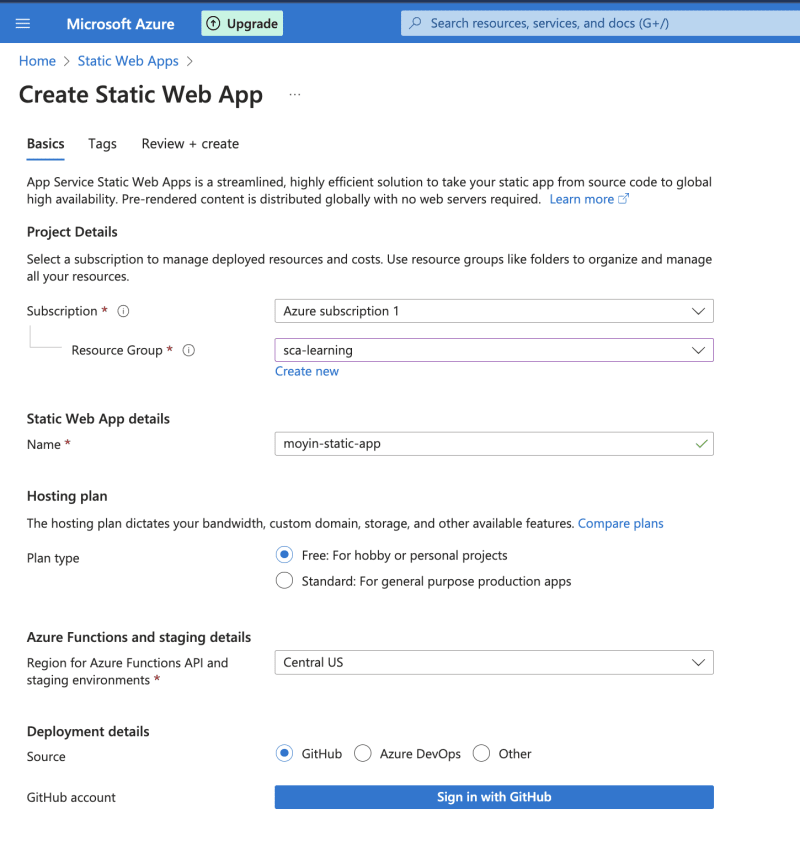
- On the basic tab, fill in the required fields
Subscription: Select your Azure subscription
Resource Group: Select a resource group if you have one created or use theCreate newlink, and enter a resource group name.
Name: This is the name of the application. I usedmoyin-static-web-app. Enter your desired name in the textbox.
Plan type: Select Free.
Azure Functions and staging details: Select a region closest to you.I left it as default.
Source: SelectGitHuband authenticate by clickingSign in with Githubbutton.
- Once authenticated, select the code
Organization,RepositoryandBranchfrom the dropdowns.
Build Presets: Select the framework or language used to write the code. I used React.
App location: Put the path of your application. Mine is the root folder so I left it as default('/).
Api location: If you are working with an api, you can add the path here.
Output location: Enter the path of your build.
Once done, review and create the application
When deployment is complete, select the Go to resource button
Once the build (Github Actions workflow) is completed, select the url and view the deployed web application as shown below.
Step 4: Cleaning up resources
If you are not going to be using the application, then delete the Azure Static Web Apps instance to avoid incurring unnecessary costs.
Vollständiger Original-Bericht
Ausführliche Details, Code-Beispiele & Hersteller-Stellungnahme auf dev.to.

SOCIAL SHARE CARD GENERATOR