Facing issues with the KB5018922 update?
If yes, then you are in the right place.
Whenever a new Windows update is released, there are always some errors, problems, and known issues due to compatibility or any other reason.
And same is the case with this one. If you don’t know about it, then KB5018922 is a cumulative update for Servicing Stack Update for Windows Server 2012 R2 for x64-based Systems, also known as “Microsoft Windows Server 2012 and Windows 8.1, RT 8.1 Security Updates” released on October 11, 2022.
Although, the majority of bugs or problems get resolved as soon as the company gets the report from the users. This time the update triggers the SSL and TLS handshake failures on both client and server platforms.
In some cases, Microsoft also looks for the CVE ( Common Vulnerabilities and Exposures ) reports, so that they can know which services and products are getting affected after this update.
So, without further ado, let’s get started…
5 Methods to Fix Windows Update Error KB5018922 and Issues?
One of the most common ways to fix these issues is to manually download and install the update from Microsoft Catalog because this is the easiest one and usually helps in getting fixed.
And if the KB5018922 keeps failing and you are getting errors such as “SEC_E_ILLEGAL_MESSAGE“, “0x800F0922“, or “The update isn’t applicable“, then you should try the other given methods. Apart from that, the Cluster Service was also not starting properly because of some known issues and missing drivers.
But before that, let’s see what could be the main reason that may be causing problems such as “Windows Update failed to install” and “Installation failed“. Here we have listed 7 important ones.
- Wrong configurations.
- Lack of free space.
- Missing or corrupted update files.
- Poor or Unstable internet connection.
- Malware or Virus Infection.
- Outdated hardware or software drivers.
- Issues with Windows service ( Filesystem, Registry & update ).
Now let’s fix them.
Method 1: Restart Windows Related Services
In most cases, the reason can be very small like some update service is not working properly or maybe you have configured them incorrectly. So, restarting the main one and the other Windows services can help you in fixing this issue.
1. Go to the search bar, then type “Run” & hit Enter.

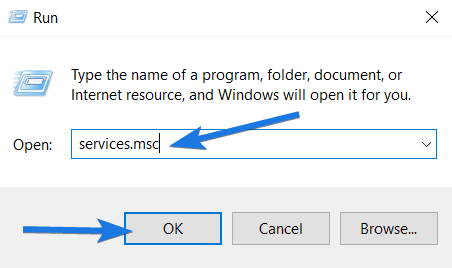
2. Now in the dialog box, type “services.msc” and click OK.
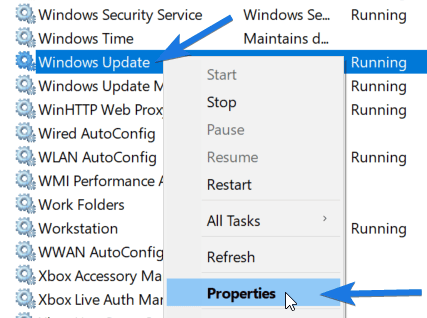
3. Scroll down and look for the “Windows Update” service, then right-click on it and select the Properties option.
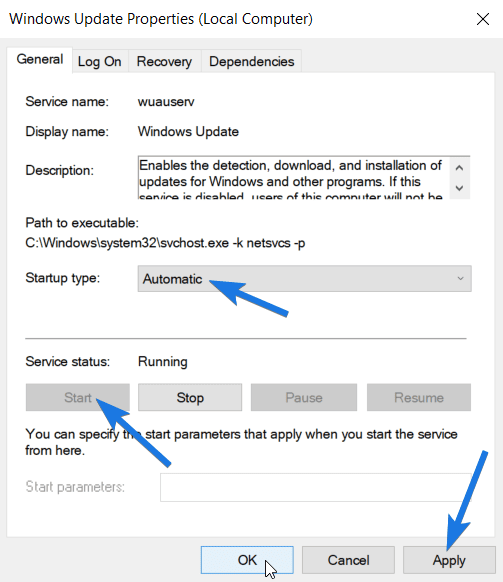
4. Now change the Startup type to Automatic and click on the Start button. After that, click on the Apply button and then OK.
Note:- You have to perform Step 3 and Step 4 for all the given services:-
- Windows Installer
- Background Intelligent Transfer Service
5. Once all the above-mentioned services are restarted, try to install the KB5018922 update.
Method 2: Using Windows Update Troubleshooter Tool
One thing that I really like about Windows is that it always provides some in-built fix tool like “Windows Update Troubleshooter”. In short, it is a simple utility that helps you to detect and resolve common update problems.
Note:- Earlier it was available for download but now they have specifically added it to their operating system.
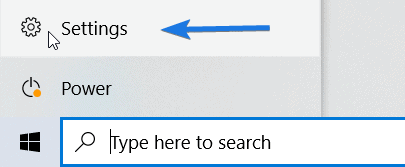
1. Go to the “Start menu” and click on the Settings icon.
2. Now click on the “Update & Security” option.

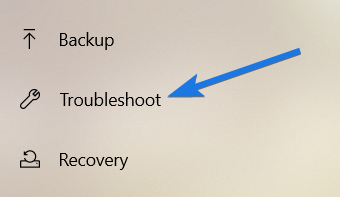
3. After that on the left-hand side pane, go to the “Troubleshoot” tab.
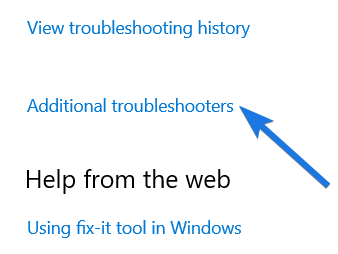
4. Now click on the “Additional troubleshooters” link.
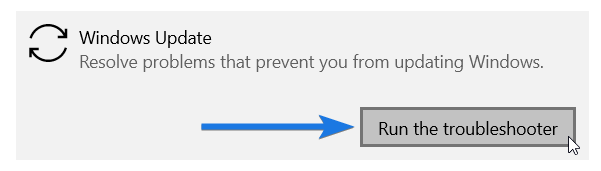
5. Scroll down, tap on the “Windows Update” option, and then click on the “Run the troubleshooter” button.
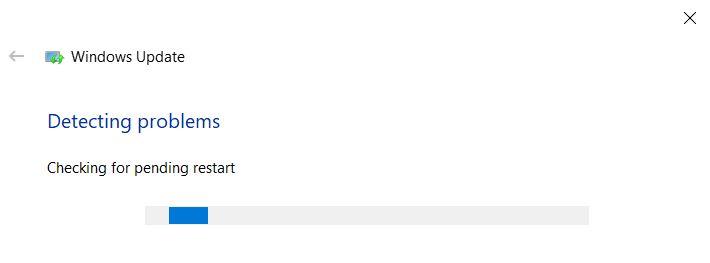
6. Now follow the on-screen instructions, then it will automatically start detecting and resolving problems.
Some Related Updates:-
- Kb5022899
- Kb5017398
- Kb5018476
- Kb5020387
- Kb5020438
Method 3: Delete SoftwareDistrubution Folder
If the above methods have not worked for you and the update is still not downloading, then deleting the software distribution folder may help you. With these steps, we are going to clear the temporary cache files present in the given folder which is maintained by Windows Update Agent.
1. Go to “This PC” from your desktop or start menu.
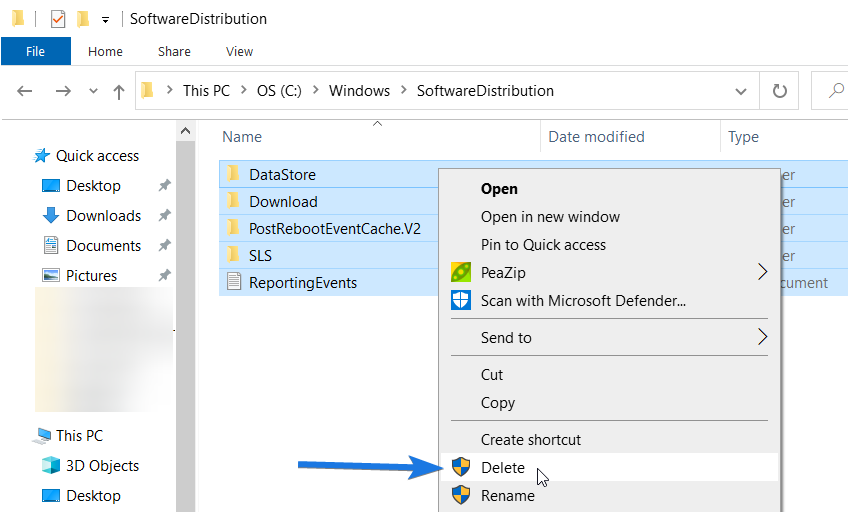
2. Now navigate to this path “C:\Windows\SoftwareDistribution” and you may find this location where the OS is installed on the local drive.

Note:- If you are unable to find the location, just open the File Explorer and enter this command ” %windir%\SoftwareDistribution\ ” and hit Enter.

3. Select all the folders and files, right-click on them, and then select the Delete option.
Note:- If some of the files are not getting deleted, then just skip them.
4. Now Restart your PC and try updating KB5018922 again.
Method 4: Run the DISM command and SFC scan
If it is still not working, then repairing or cleaning up system files might save you. Here we will first run the ( Deployment Image Servicing and Management ) DISM command which allows us to repair system images and then we will use the ( System File Checker ) SFC scan to replace the corrupted or missing system files using the recovery image.
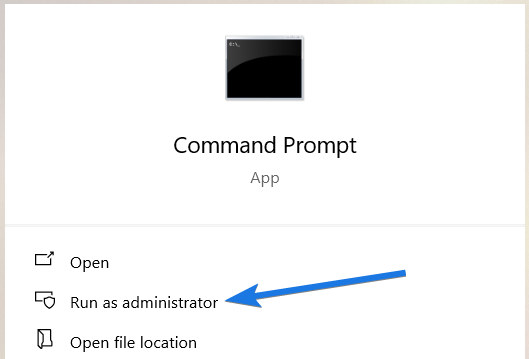
1. Go to the search bar, type “CMD” and then select the “Run as administrator” option.
2. After that the command prompt dialog box will open up, type ” DISM /Online /Cleanup-Image /RestoreHealth ” and hit Enter.
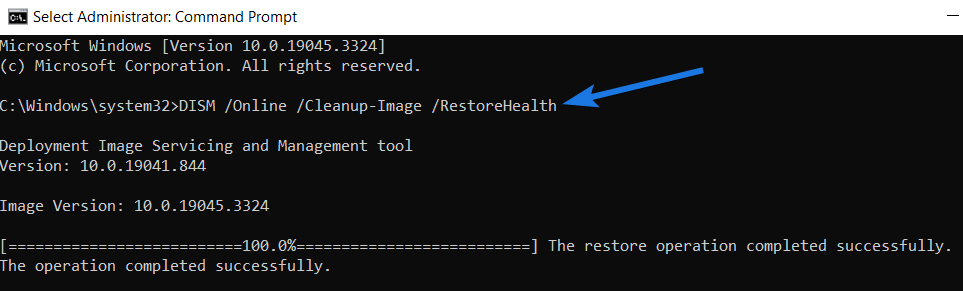
Wait for a few seconds to complete the process and once done successfully you can move to the next step.
3. Now type the next command ” sfc /scannow ” and hit Enter.
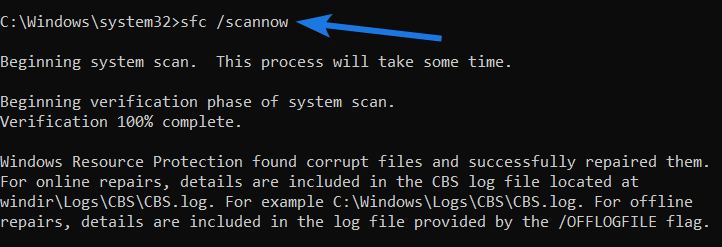
After that it will start scanning your system, so now wait for a few minutes until you get a 100% complete message. In our case, Windows Resource Protection has found corrupt files and successfully repaired them.
4. Restart your computer and check if you can update now.
Note:- You can use these commands as a Repair Tool and can fix your basic Windows errors or issues anytime you want.
Other Related Updates:-
- Kb5022352
- Kb5022894
- Kb5022922
- Kb5020447
- Kb5020435
Method 5: Resetting Windows Components
Even after multiple attempts, if your Windows update fails again and again then the only option left is to reset the important components. However, this method is somehow similar to the first one that we used for fixing the KB5018922 error. But here, we will be using some new commands for different services.
1. First, type “CMD” in the search bar and then select the “Run as administrator” option.
2. Now enter the “net stop bits” command and hit Enter. ( Wait for some time while the service is stopped successfully)
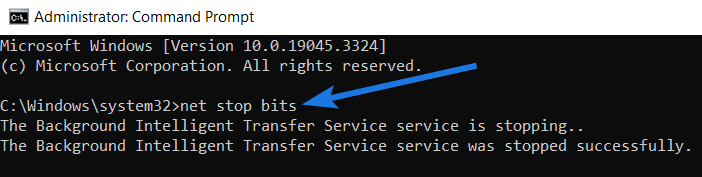
Similarly, use these 3 commands one by one:-
- net stop wuauserv
- net stop appidsvc
- net stop cryptsvc
3. After that, type this command ” Ren C:\Windows\SoftwareDistribution SoftwareDistribution.old ” and hit Enter.

4. And then, type this command ” Ren C:\Windows\System32\catroot2 Catroot2.old ” and hit Enter.

5. Now enter the “net start bits” command and hit Enter. ( Here, we are starting the Windows components which we stopped earlier )

Similarly, use these 3 commands one by one:-
- net start wuauserv
- net start appidsvc
- net start cryptsvc
6. At last, restart your system ( Laptop, Computer, or PC ) and check if the update error is fixed or not.
Quick Tip:- I know sometimes it’s very frustrating but if you are still stuck then I would recommend you to go to any popular FORUM and ask for help. Also, while asking it is better to mention our source, so that the person can know which steps you have already performed.
That’s it for now…
Conclusion
So, that’s all about how you can fix KB5018922 issues, errors, and other update-related problems. All the above-mentioned methods work perfectly fine with different versions like Windows 11, 10, 8.1, 8, 7, Vista, and server. But make sure to follow them carefully because the interface of every version may not be the same.
Adding to it, you can also try to temporarily disable or uninstall the antivirus software to solve some of your computer problems because they also interferes with many processes.
Stay tuned for the next post…
Feel free to share your thoughts via comments and also tell us about this post on How to Fix KB5018922 Update Error in Windows.
If you liked this post, don’t forget to share it.

SOCIAL SHARE CARD GENERATOR