




https://keploy.io/blog/community/how-to-run-tests-in-visual-studio-code-a-complete-guide
Introduction
Did you know that you can run tests directly within Visual Studio Code (VS Code)? Thanks to its built-in support for multiple testing frameworks, testing becomes faster and more efficient. You can debug tests, analyze results, and ensure your code’s reliability-all within the IDE.
Testing is crucial in software development to validate code performance, functionality, and stability. Whether you're performing unit tests, integration tests, or end-to-end tests, VS Code provides powerful extensions and tools to streamline the process.
In this guide, we’ll walk you through setting up, configuring, writing, and running tests in VS Code.
Prerequisites
Before starting, ensure you have:
VS Code Installed: Download and install Visual Studio Code.
Code and Test Files: Prepare some code and corresponding test files.
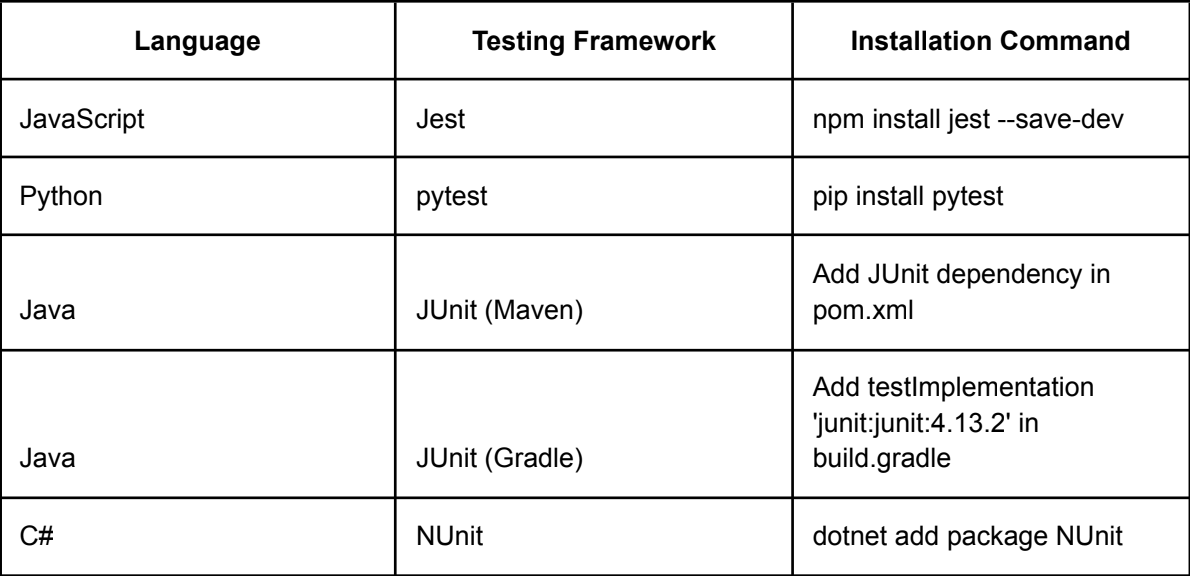
Testing Framework Installed: Install a framework relevant to your language:
Steps to Run Tests in VS Code
Step 1: Set Up the Testing Environment
- Install Testing Dependencies
* Run the relevant installation command in your terminal:
    ```sh

    npm install --save-dev jest   # For JavaScript

    pip install pytest            # For Python

    mvn test                      # For Java with Maven

    ```
- Organize Test Files
* Create a folder called `tests` (or similar) in your project’s root directory.
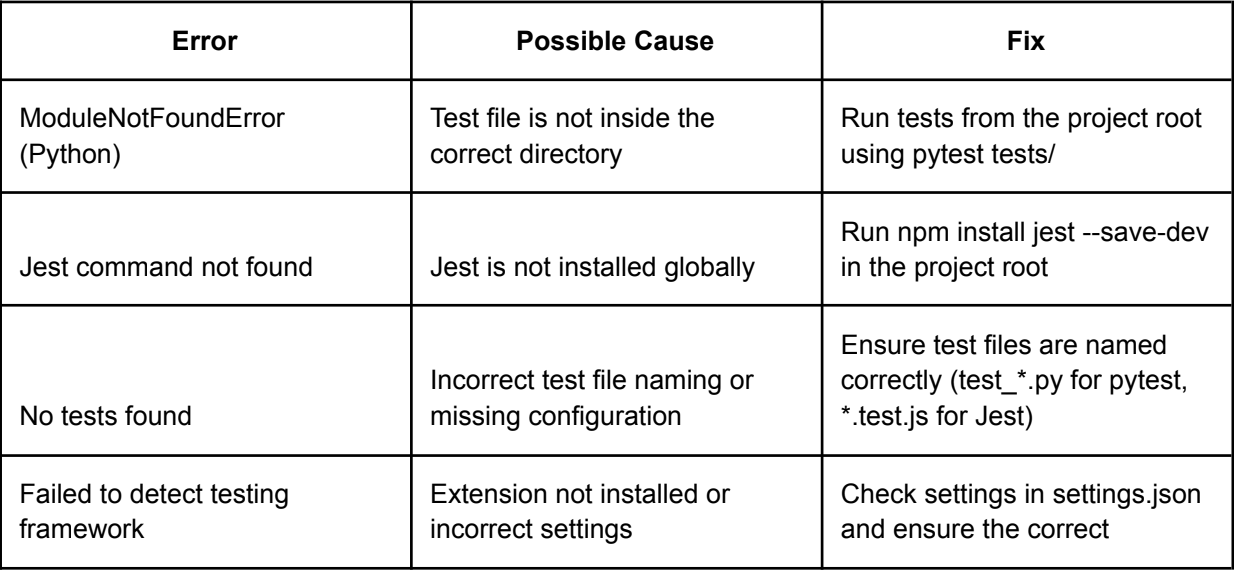
* Follow naming conventions (e.g., `test_example.py` for Python, `math.test.js` for JavaScript).
* 
Step 2: Configure VS Code for Testing
Modifysettings.json(Optional)
* Configure VS Code to recognize your testing framework.


* Open `settings.json` (press `Ctrl + ,` or `Cmd + ,` on Mac) and add:
    ```json

    {

      "python.testing.pytestEnabled": true,

      "python.testing.unittestEnabled": false,

      "python.testing.pytestArgs": ["tests"]

    }

    ```
- Enable Testing Extensions
* Install and activate the relevant testing extension:


    * **Python Testing**: Install the **Python extension**.


    * **JavaScript Testing**: Install the **Jest extension**.
Step 3: Write and Run Tests
- Write a Simple Test
* **JavaScript (Jest)**
    ```js

    test('adds 1 + 2 to equal 3', () => {

      expect(1 + 2).toBe(3);

    });

    ```
* **Python (pytest)**
    ```python

    def test_addition():

        assert 1 + 2 == 3

    ```
* [**Java (JUnit)**](https://keploy.io/blog/community/how-to-use-junit-on-vs-code-a-comprehensive-guide)
    ```java

    import static org.junit.Assert.assertEquals;

    import org.junit.Test;

    public class MathTest {

        @Test

        public void testAddition() {

            assertEquals(3, 1 + 2);

        }

    }

    ```
- Run the Test
* Open the test file in VS Code.


* **Use the Testing Panel**:


    * Click the **Testing Icon** in the Activity Bar.


    * Click **Run All Tests** or click the **play icon** next to a specific test.


* **Run from Terminal (Optional)**:
    ```sh

    npm test    # Jest

    pytest      # Python

    mvn test    # JUnit (Maven)

    ```
Step 4: Debug Your Tests
- Add Breakpoints
* Click to the left of a line number in your test file to set a **breakpoint**.
- Start Debugging
* Right-click the test and select **Debug Test**.
* Use the **Debug Panel** to step through the code, inspect variables, and evaluate expressions
How Keploy Helps in Creating Unit Test Cases Easily from VS Code?
Keploy, an AI-powered testing tool, simplifies the process of writing and maintaining unit test cases in VS Code. By analyzing your source code, Keploy automatically generates test cases, reducing manual effort and improving test coverage.
Here’s how Keploy enhances the testing experience:
- Automated Test Case Generation
* Keploy reads your source code and **auto-generates unit test cases** based on function behaviors.


* It captures API interactions and creates structured test cases for easier debugging.
- Seamless Integration with VS Code
* Install the **Keploy extension** in VS Code for an effortless setup.


* Supports multiple languages, including **Java, Python, and JavaScript**.
- Run & Debug Tests with One Command
* Keploy provides a **single command** to run and validate generated test cases.


* Debugging is simplified with structured test logs and failure analysis.
- Enhances Code Quality & Coverage
* Ensures **100% test coverage** by generating test cases even for untested code paths.


* Reduces human effort, making test creation quick and error-free.
To get started with Keploy in VS Code, install it via: Vscode Marketplace Keploy’s AI-driven test case generation significantly accelerates development cycles, making testing more efficient and reliable!
Conclusion
Running tests in Visual Studio Code is a simple yet powerful way to ensure code reliability and maintainability. With the right setup, you can speed up debugging, improve productivity, and maintain high-quality code.
Start integrating VS Code with your preferred testing framework today and experience seamless testing workflows!
FAQs
1. Can I use multiple test frameworks in a single project?
Yes, VS Code supports multiple testing frameworks. Configure them in settings.json accordingly.
2. Are extensions required to run tests in VS Code?
No, but extensions enhance the experience by providing features like test discovery, visualization, and debugging.
3. Can I run tests on a remote server using VS Code?
Yes! Use the Remote Development extension pack to run tests on remote servers or containers.