Zum Hauptinhalt springen
tsecurity.de LIVE
Echtzeit-Radar & Feeds
Alle RSS Feeds
👥 Community & Social
Sichere ProgrammierungMCP Tool Poisoning: A Name Allowlist Is Not Enough(22.09.2026 um 18:56 Uhr)
Sichere ProgrammierungGiggleGigs: A Job Board That Actually Uses AI Where It Helps(22.09.2026 um 18:57 Uhr)
Sichere ProgrammierungThe Bootstrapped SaaS Flywheel: How to Hit $10k MRR Without VC Capital(22.09.2026 um 19:05 Uhr)
Sichere ProgrammierungThe container was running software nobody built(22.09.2026 um 19:08 Uhr)
Sichere ProgrammierungYour Terminal Tasks, Everywhere: Introducing Tasku Cloud(22.09.2026 um 19:08 Uhr)
Sichere ProgrammierungMCP Tool Poisoning: A Name Allowlist Is Not Enough(22.09.2026 um 18:56 Uhr)
Sichere ProgrammierungGiggleGigs: A Job Board That Actually Uses AI Where It Helps(22.09.2026 um 18:57 Uhr)
Sichere ProgrammierungThe Bootstrapped SaaS Flywheel: How to Hit $10k MRR Without VC Capital(22.09.2026 um 19:05 Uhr)
Sichere ProgrammierungThe container was running software nobody built(22.09.2026 um 19:08 Uhr)
Sichere ProgrammierungYour Terminal Tasks, Everywhere: Introducing Tasku Cloud(22.09.2026 um 19:08 Uhr)
Intelligence View
⚡ tsecurity.de Intelligence

How to Start with Vim in Linux Red Hat – A Beginner’s Guide

If you’re diving into the world of Linux, especially with Red Hat, learning Vim is a must. It’s a powerful text editor that’s perfect for editing configuration files, writing scripts, or just working efficiently in the terminal. While it mi…

0
↗ Quelle (dev.to)
Reagiere als Erste:r — dein Feedback zählt!

If you’re diving into the world of Linux, especially with Red Hat, learning Vim is a must. It’s a powerful text editor that’s perfect for editing configuration files, writing scripts, or just working efficiently in the terminal. While it might seem a bit tricky at first, this guide will help you get started without feeling overwhelmed.


Table of Contents


  • Introduction to Vim

  • Installing Vim on Red Hat

  • Understanding Vim Modes

  • Basic Commands you'll use often

  • Navigation to Vim

  • Essential Editing Shortcuts

  • Why learn Vim


Introduction to Vim


What is Vim?


Vim is an enhanced version of the classic Vi editor. It’s lightweight, fast, and packed with features like multi-level undo, syntax highlighting, and even multi-window support. Whether you’re editing plain text or writing code, Vim is up for the task.


Installing Vim on Red Hat


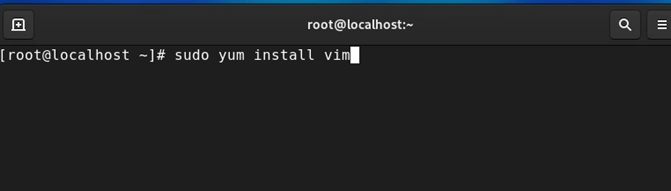
To install Vim on Red Hat-based systems, use the following commands:


• For newer systems:
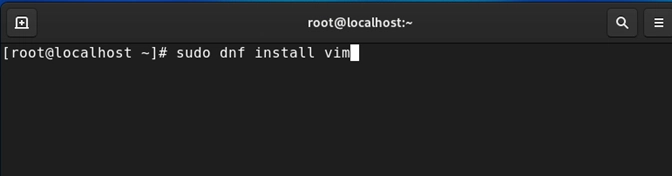


Image description


• For older versions:


Image description


Once installed, type vim in your terminal to check if it’s ready to go.


Understanding Vim Modes


Vim works differently from most editors because it has modes. Here are the three main ones:


  1. Command Mode: This is where you navigate and run commands (default mode).

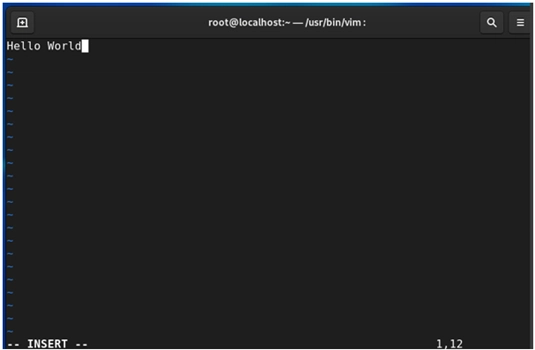
  2. Insert Mode: Used for typing and editing text. Enter it by pressing i.

  3. Extended Mode: For saving, quitting, and advanced commands. Enter it by pressing :


Switching Modes:

• Press Esc to return to Command mode.

• Press i to enter Insert mode.

• Press Shift+: to enter Extended mode.
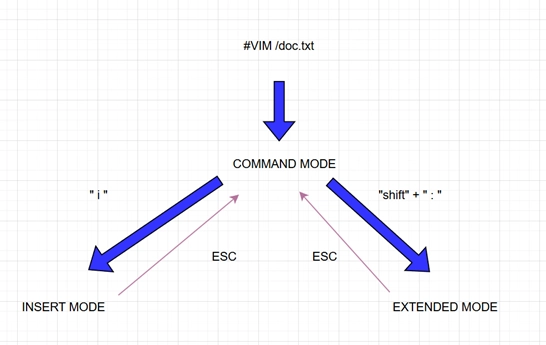


Image description


Basic Commands you’ll use often


Here are some essential commands to get you started:


• Open or Create a File:

vim file-name = open the editor
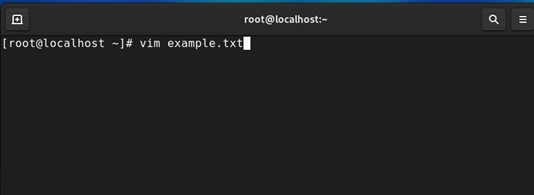


Image description


• If the file exists, it opens for editing; if not, a new one is created.


• Save and exit :wq
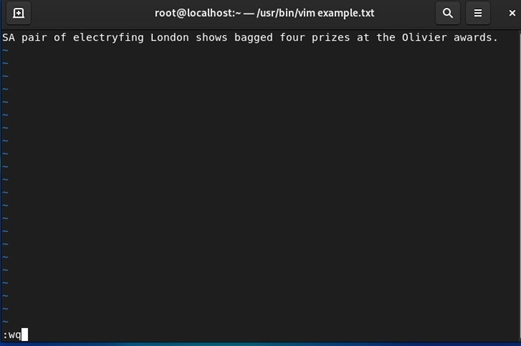


Image description


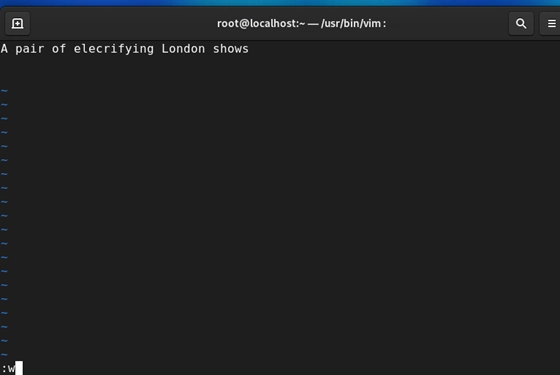
• Save without exiting :w


Image description


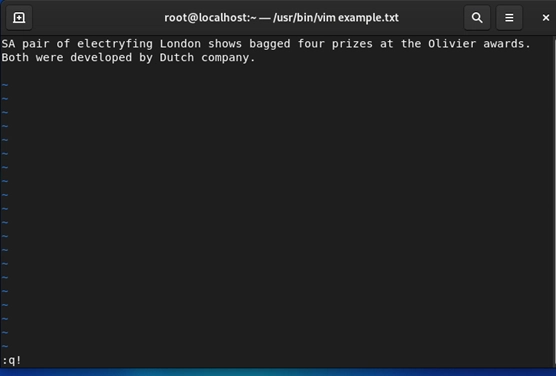
• Quit without saving :q!


Image description


Editing Text:

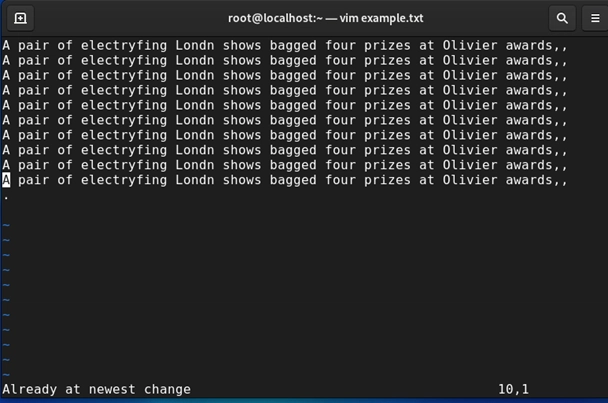
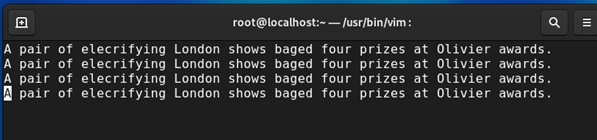
• Enter Insert mode by pressing i, type your text, then press Esc to return to Command mode.
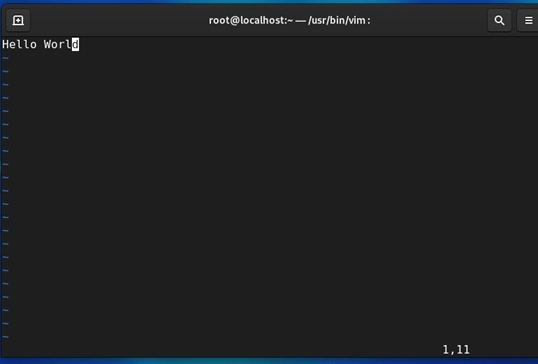


Image description


Image description


Understanding Vim Modes


Navigating in Vim


In Command mode, use these keys to move around:


h: Move left

l: Move right

j: Move down

k: Move up

0: Jump to the start of a line

$: Jump to the end of a line

gg: Go to the beginning of the file

G: Go to the end of the file


Essential Editing Shortcuts


Here are some handy shortcuts for editing in Vim:


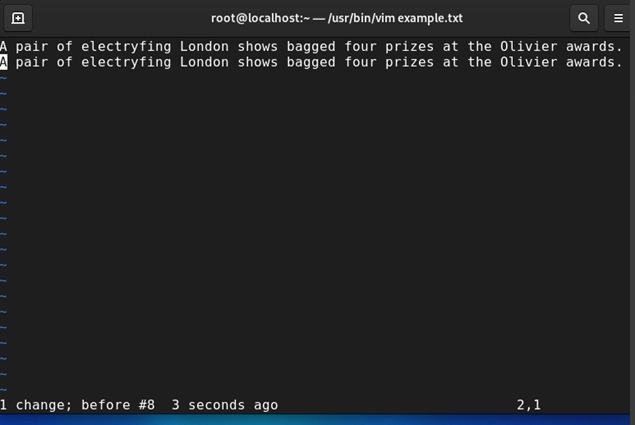
• Copy a line yy
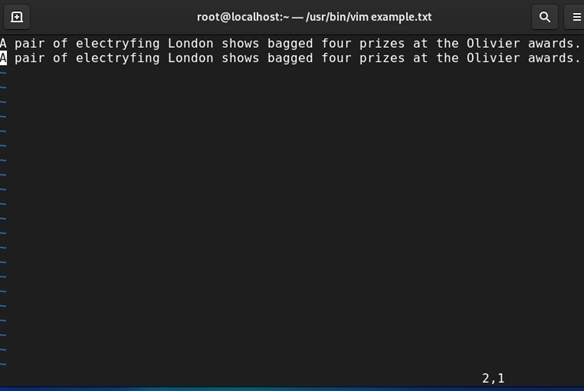


Image description


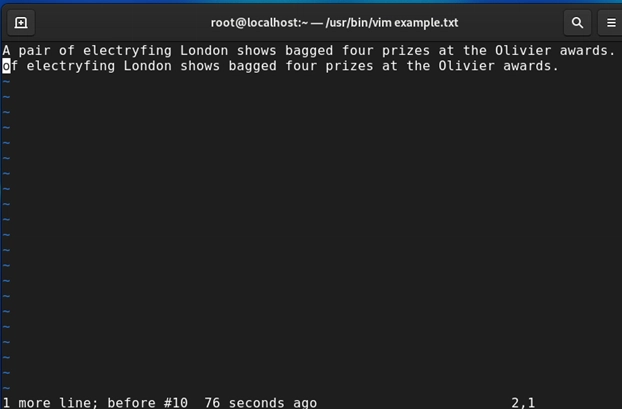
• Copy a word yw


Image description


• Delete a line dd


Image description

• Delete a word: dw


Image description

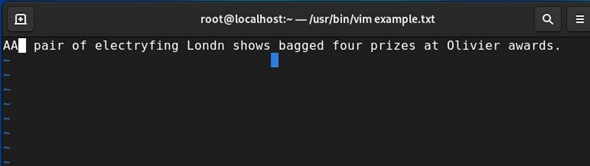
• Undo last change u


Image description

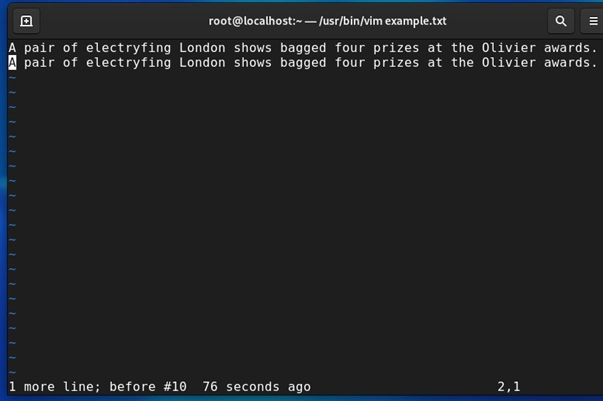
• Redo last undone action: Ctrl +r


Image description


• Paste copied content p


Image description

Summary


Why Learn Vim?


Sure, Vim has a bit of a learning curve—but once you get used to it, you’ll wonder how you ever worked without it. It’s fast, reliable, and works on any system (even remote servers).

Plus, once you master its shortcuts and commands, you’ll save tons of time editing files or writing code.


Happy Vimming!

Ähnliche Beiträge
🔍 Verwandte News

Auch interessante Nachrichten How to Start with Vim in Linux Red Hat – A Beginner’s Guide

Thematisch verwandte Begriffe: Start, with, Linux, Beginners · 6 Treffer

Laden...

Videos werden geladen ...

Laden...

Beiträge werden geladen ...

Laden...

Videos werden geladen ...

Laden...

Beiträge werden geladen ...

Laden...

Videos werden geladen ...

Laden...

Beiträge werden geladen ...

Laden...

Videos werden geladen ...

Laden...

Beiträge werden geladen ...

Laden...

Videos werden geladen ...

Zum Aktualisieren ziehen
ZERO-DAY CVE-2026-75517 | Novu provides an API for sending notifications through multiple channels…
Advisory →
TTS Reader • tsecurity.de Voice
tsecurity.de Icon
tsecurity.de App
Offline-Lesen, Eilmeldungen & 0ms Ladezeit

Installiere tsecurity.de direkt auf deinen Home-Bildschirm für das ultimative Vollbild-Magazinerlebnis ohne Browser-Leisten.

Nächster Beitrag
Themen-Radar & Intelligence Matrix
Echtzeit-Taxonomie nach Angriffsvektoren & Plattformen

tsecurity.de Live Threat Radar

🔴 LIVE RADAR
MONITORING
AKTIV
CVE-DATENBANK
LIVE
🔍
Community Radar & Live Chat
Sentinel Bot online • Live-Stream
Dein Cluster: Security Explorer
Match:
lädt…
Verbindung zum Community-Stream wird aufgebaut...
Bearbeitungsmodus — Senden überschreibt deine Nachricht
Community-Puls — was gerade passiert
lädt…
Aktivitäten deiner Analysten
lädt…
Neues Thema oder Eilmeldung einreichen

Reiche interessante Links, Zero-Days oder Debatten ein. Die Community entscheidet per Upvote über die Veröffentlichung.

Heiß diskutierte Einreichungen
🔖 Gespeicherte Artikel
📂 Keine gespeicherten Artikel vorhanden.
Zurück Ziehen Vor
Links: vorheriger Artikel Rechts: nächster Artikel unten: schließen
News NIS-2 Frühwarnung Tier-1 Intel ⏱️ 3 Min vor 10 Min
Artikeldaten werden geladen...

Zurück: vorheriger Vor: nächster
↗ Original-Quelle
Social Reaktionen Deine Reaktion zählt
Einstufung & Relevanz-Poll 0 Stimmen
In sozialen Netzwerken teilen 1-Klick