
Whether you're just getting started with Linux or refreshing your command-line skills, mastering how to create directories and files, read and append to files, and delete files or directories is a fundamental step in your DevOps, Cloud, or SysAdmin journey.
In this guide, I’ll walk you through the most common and useful mkdir, touch, cat, and rm commands—complete with examples and tips.
Table of Contents
- How to Create a Directory
- How to Create a File
- How to Use the cat Command
- How to Remove/Delete Files or Directories
- Business Use Case
- Final Thoughts
How to Create a Directory
The 'mkdir' command is used to create new directories (folders) in Linux.
- Create a single directory in the root (/) directory:
mkdir /Lucca
ls /
Terminal preview:

- Create multiple directories at once:
mkdir /Lucca1 /Lucca2 /Lucca3
ls /
Terminal preview:

- Use brace expansion to create a series of directories:
mkdir /GCP{1..10}
ls /
Terminal Preview:

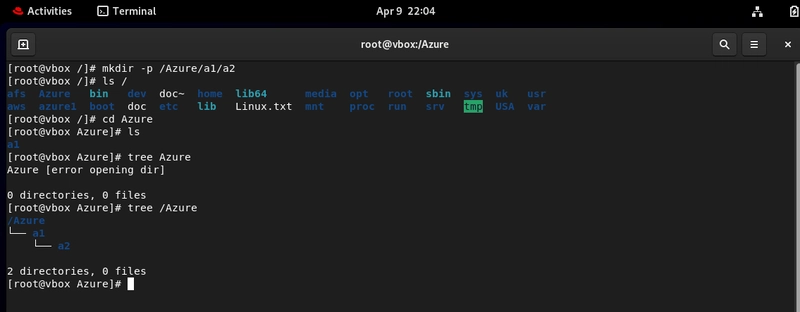
- Create nested directories using the -p option:
mkdir -p /Azure/a1/a2
ls /
cd Azure
ls
tree /Azure
Terminal Preview:
How to Create a File
The 'touch' command creates empty files in Linux.
- Create a single file:
touch /appv.py
ls /
Terminal preview:

- Create multiple files:
touch /appv1.py /appv2.py /appv3.py
ls /
Terminal preview:

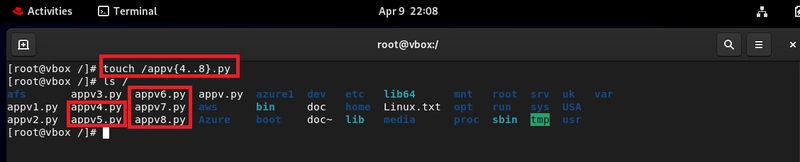
- Use brace expansion to create a sequence of files:
touch /appv{4..8}.py
ls /
Terminal preview:
How to Use the cat Command
The cat command is extremely versatile. It can create files, display their contents, or append data.
- Create and write to a new file:
cat > /Linux.txt
This creates an empty file called Linux.txt;
Then type in the newly created file:
Linux is a super powerful server.
It is open source and very secure.
Press Ctrl + D D to save and exit.
Terminal preview:

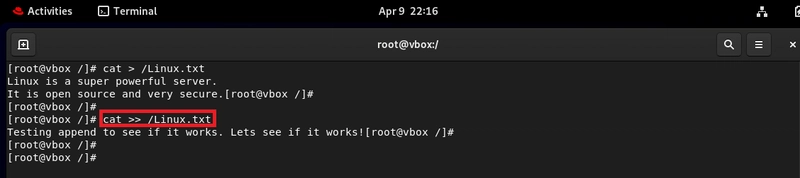
- Append content to an existing file:
cat >> /Linux.txt
This lets you type new lines into an already existing file.
Type your new lines, then press Ctrl+ D D again to save.
Terminal preview:
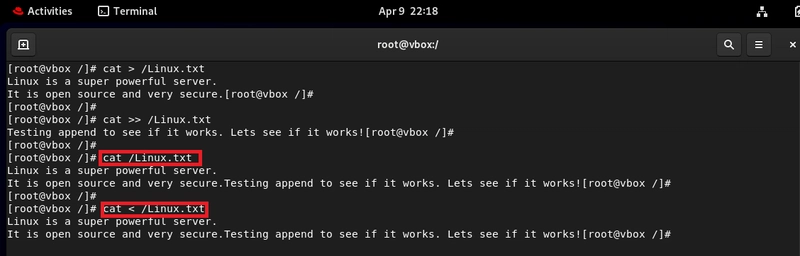
- Read a file:
cat /Linux.txt or cat < /Linux.txt
This shows or previews the content of an existing file.
I am going to use this command to preview the content of my already
existing Linux.txt, which I created, wrote in it and appended.
Terminal preview:
How to Remove/Delete Files or Directories
The rm command removes files or directories. Be very cautious when using it, especially with -rf.
Options
-r: recursive (for directories)
-v: verbose (shows what’s happening)
-f: force (no confirmation)
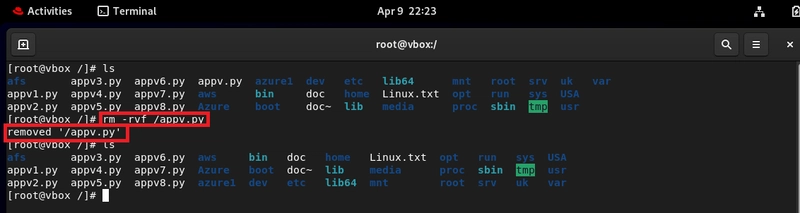
- Deleting a single file:
rm -rvf /appv.py
This command forcefully deletes the appv.py file and provides
confirmation of deletion.
Terminal preview:
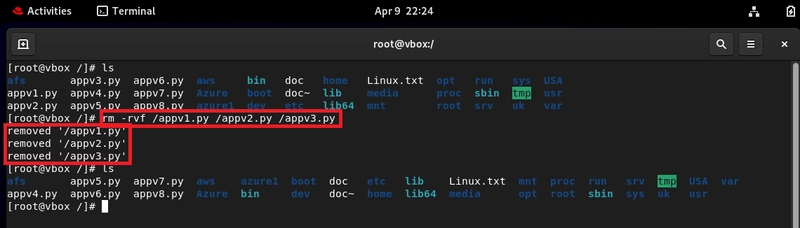
- Delete multiple specific files:
rm -rvf /appv1.py /appv2.py /appv3.py
Terminal preview:
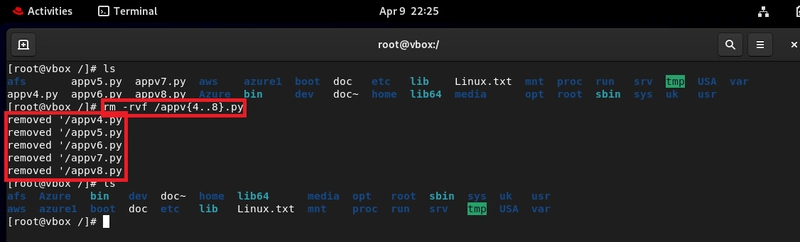
- Delete files using brace expansion:
rm -rvf /appv{4..8}.py
Terminal preview:
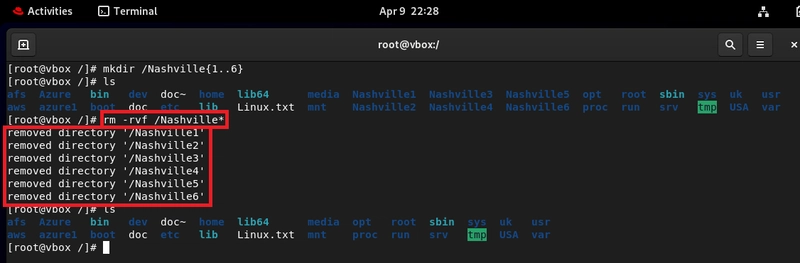
- Delete all files or directories matching a pattern:
rm -rvf /Nashville*
Terminal preview:
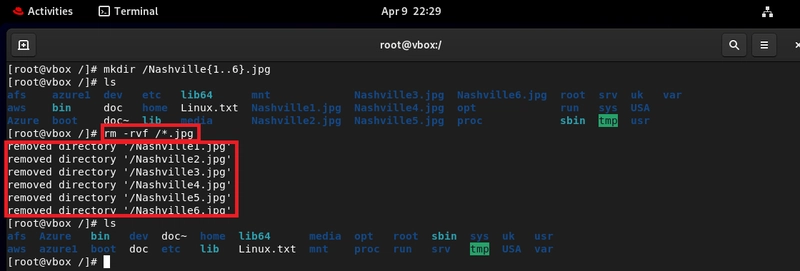
- Delete everything the root directory with a specific extension:
rm -rvf /*.jpg
Terminal preview:
Business Use Case
In enterprise cloud or DevOps environments, Linux commands play a crucial role in automation and system efficiency. 'mkdir' creates directories for logs and configs during CI/CD, 'touch' generates flag files in scripts, 'cat' reads log data for diagnostics, and 'rm' removes temporary files to optimize resources. Mastering these commands helps streamline operations, enhance security, and reduce cloud costs.
Final Thoughts
These basic commands are essential for day-to-day tasks in Linux, especially if you're:
Managing servers.
Learning DevOps, Cloud or system administration.
Working in cloud environments (like AWS, Azure, or GCP).
Getting comfortable with the command line opens the door to automation, scripting, and working efficiently with infrastructure.
If you found this guide helpful, feel free to connect, share, or drop a comment. Let's keep learning Linux together!