
In this guide, you'll learn three quick ways to open SVG files in text mode by default instead of preview mode in Visual Studio Code.
Method 1: Set Text Editor via File Context Menu
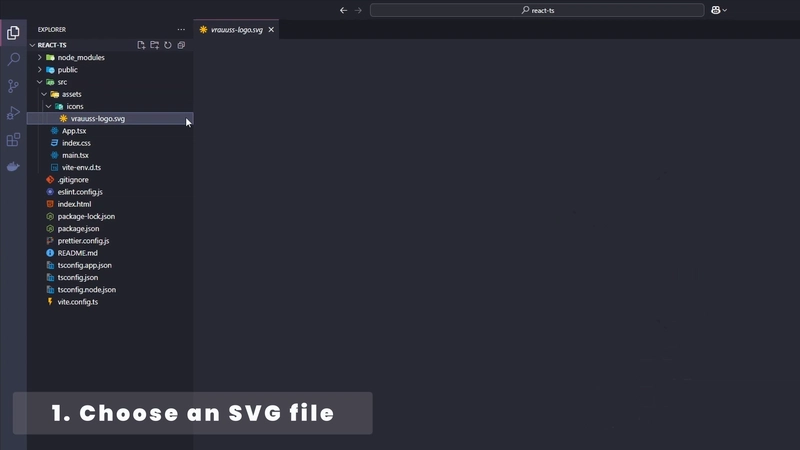
1. Choose an SVG file
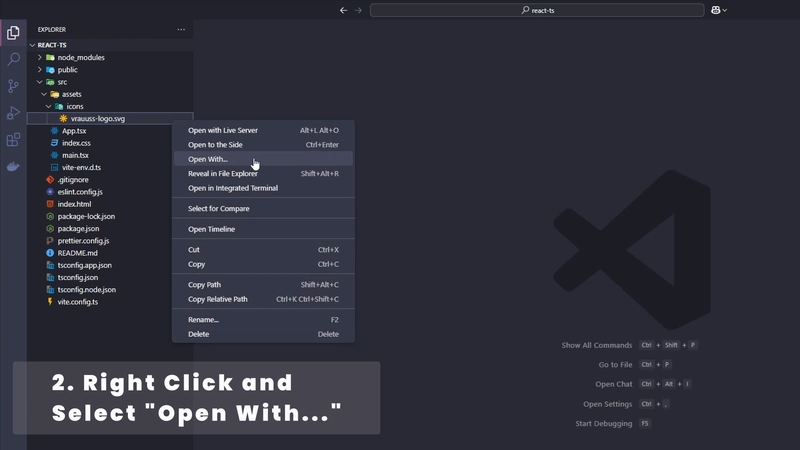
2. Right-click the file and select "Open With..."
3. Click on "Configure default editor for '*.svg'..."
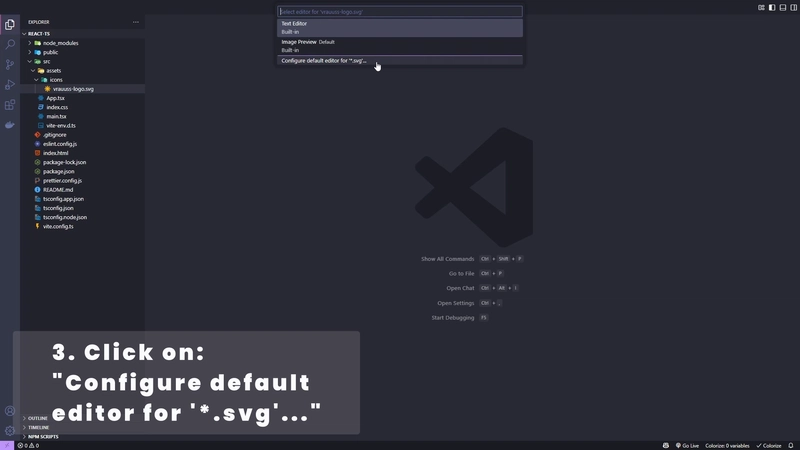
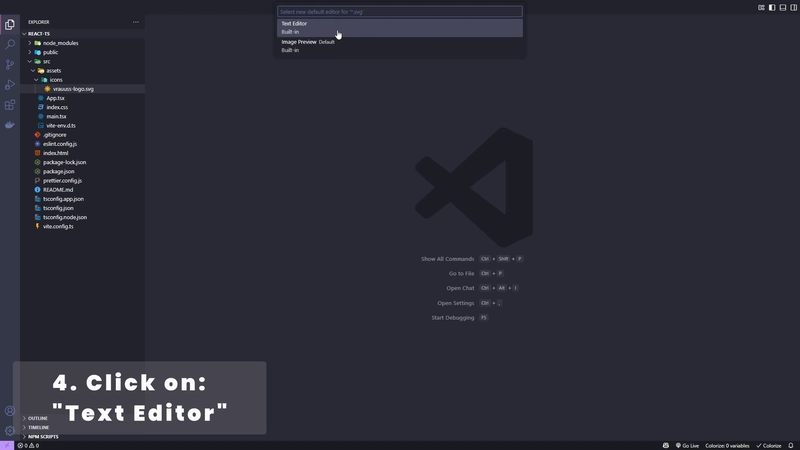
4. Click on "Text Editor" to set it as the default
Method 2: Edit the settings.json file
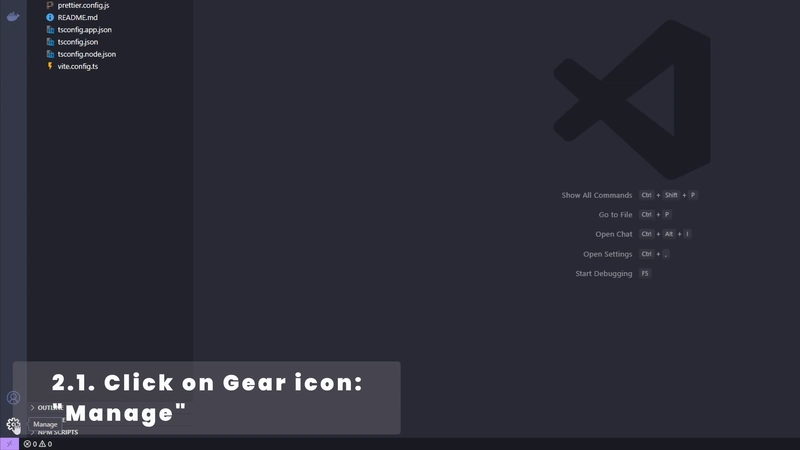
2.1 Click the gear icon in the bottom-left corner to open Manage
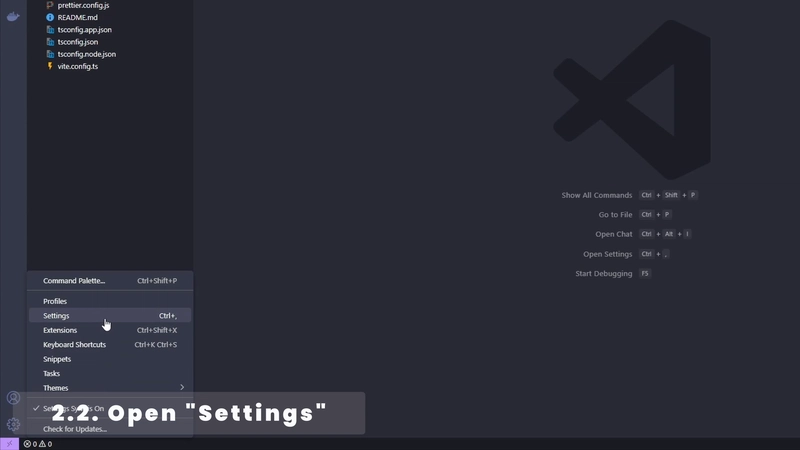
2.2 Open Settings
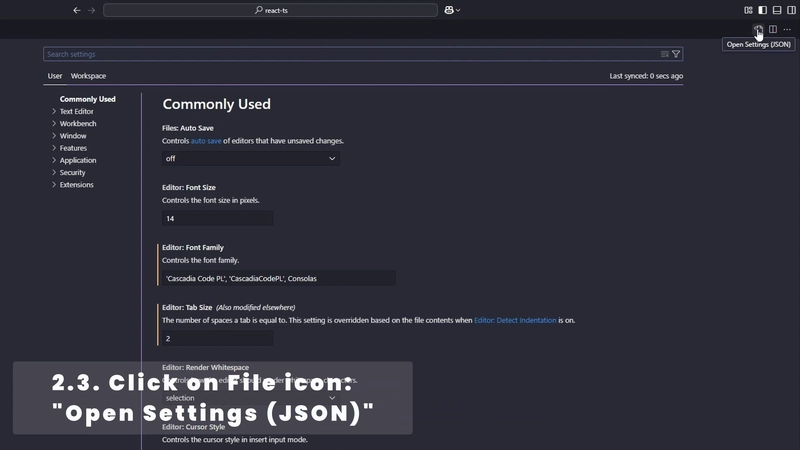
2.3 Click the file icon in the top-right corner to open the settings.json file
2.4 Paste the following code snippet to set the text editor as the default:
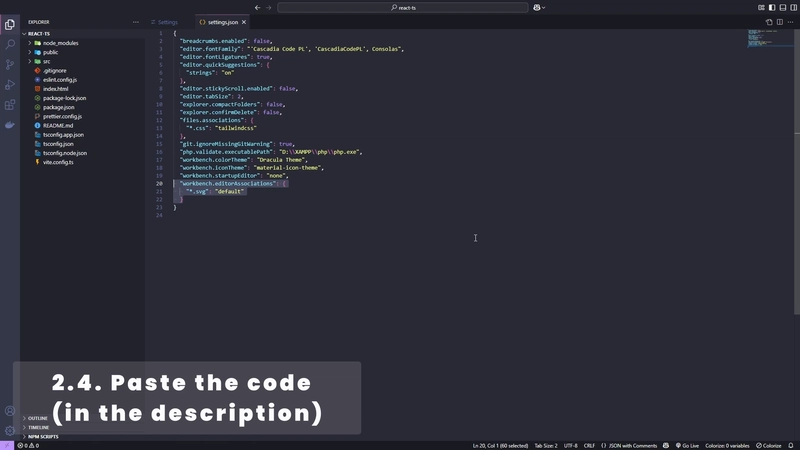
"workbench.editorAssociations": {

  "*.svg": "default"

}
Method 3: Set Association via GUI
3.1 Click the gear icon in the bottom-left corner to open Manage
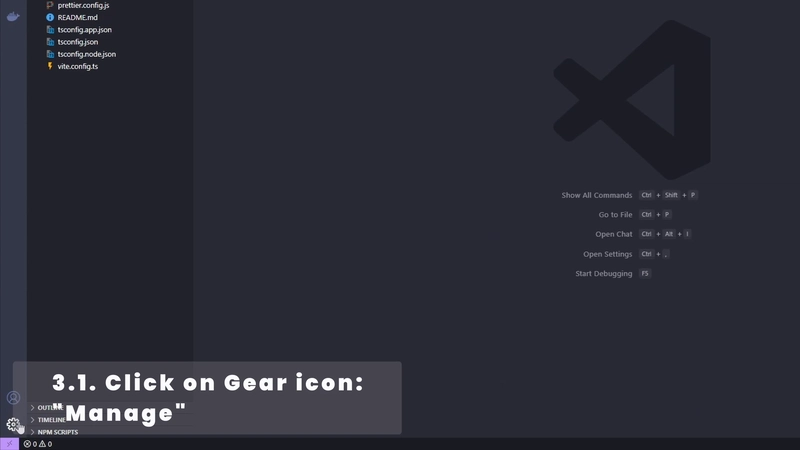
3.2 Open Settings
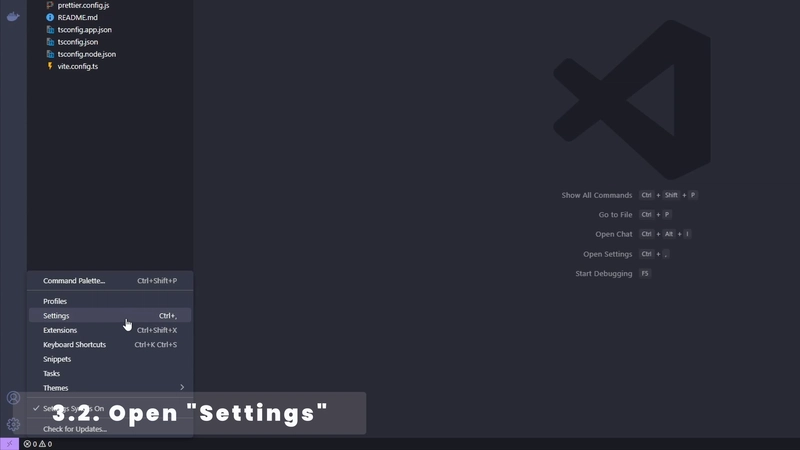
3.3 Search for "Workbench.EditorAssociation"
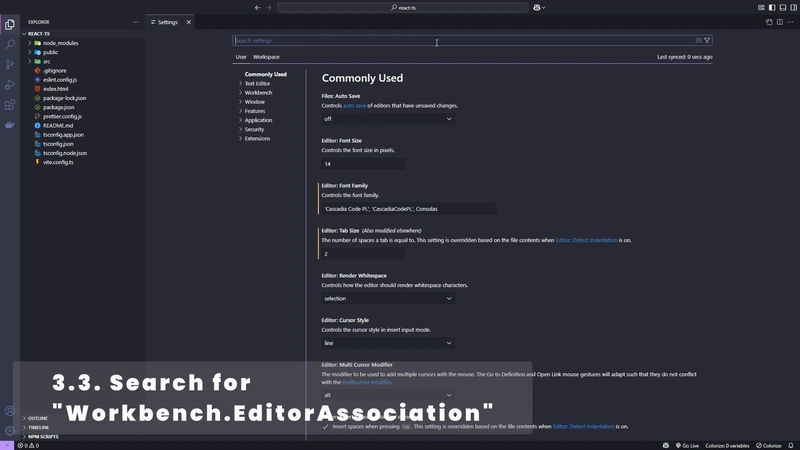
Workbench.EditorAssociation
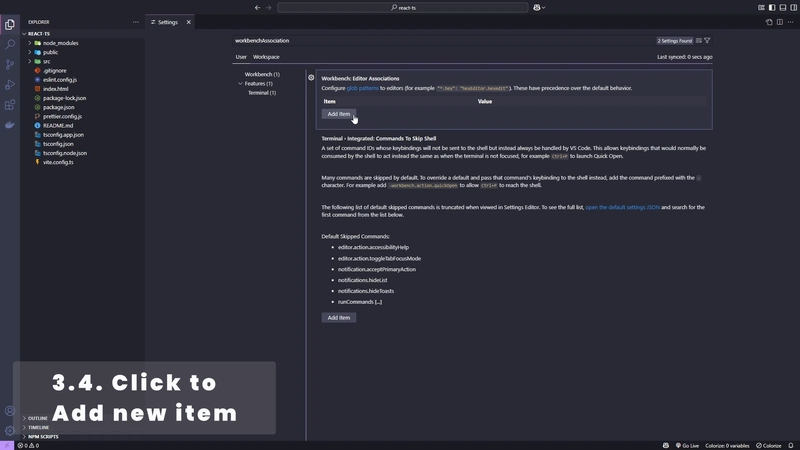
3.4 Click on "Add Item"
3.5 Type "*.svg" in the Item box
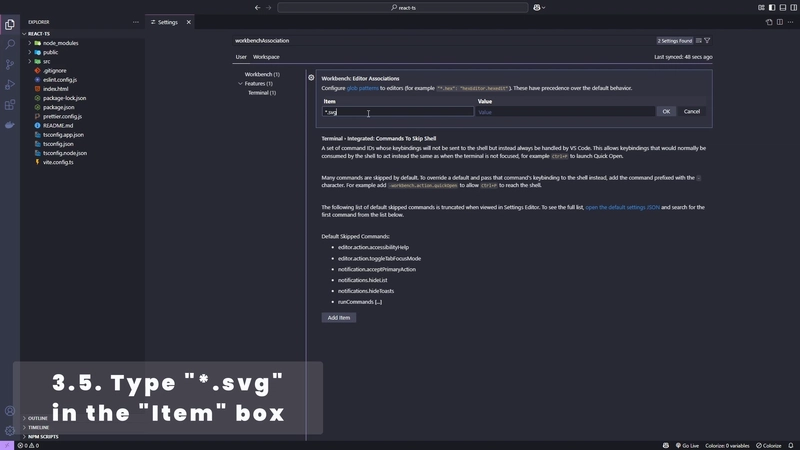
*.svg
3.6 Type "default" in the Value box
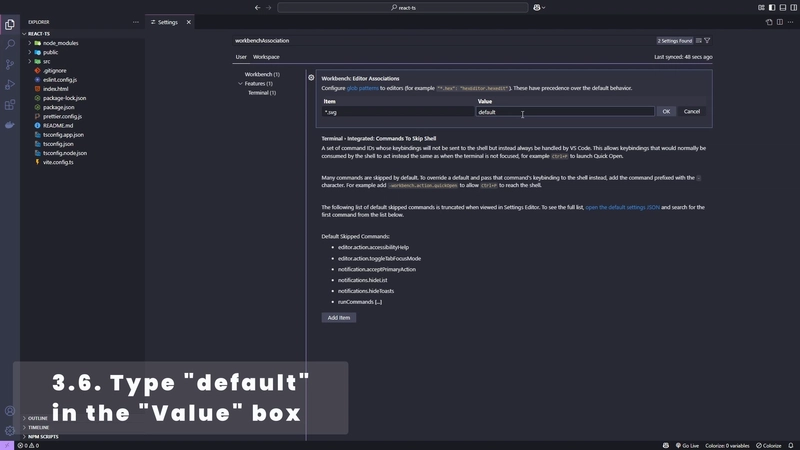
default
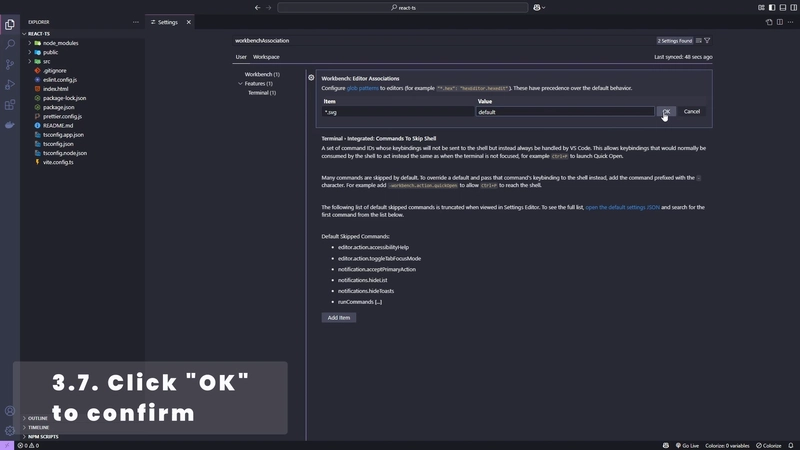
3.7 Click "OK" to confirm and set the text editor as the default
Contact
GitHub: Vrauuss Softwares
YouTube: Vrauuss Softwares
TikTok: Vrauuss Softwares
Articles
Video from this article: How to Disable SVG Preview Mode
Blog: coming soon...
Medium: coming soon...
DEV.to: coming soon...
Upcoming Articles
How to Change the Size of an SVG with CSS
More SVG tips coming soon...