



Introduction
Process Street is a powerful workflow management tool, but one common limitation is the lack of native functionality to filter data sets by column directly through its existing API connectors. While the Process Street Zapier action provides a workaround for most cases, a lot of users don’t have the ability to pay for multiple automation tools.
In this guide, I’ll walk you through:
- Setting up a Power Automate flow to filter Process Street data by any column.
- A JSON action you can copy-paste to streamline the process.
- Suggestions for how Process Street developers can enhance their API to simplify filtering.
Step-by-Step Guide
Step 1: Initialize Variables
The first step is setting up your flow variables. These variables manage data that changes dynamically, ensuring efficient loops and condition-based logic.
To variable or not to variable?
I recommend limiting variables to items that:
- Need to be updated repeatedly, such as counters or, in this case, "Next Page" URIs.
- Need to persist across actions or loops, such as the final filtered dataset array.
For values that don’t need to change, I prefer using Compose actions instead of variables. It’s just my personal preference, but I find it helpful to group multiple values into a single object within a Compose action. This keeps the flow cleaner and easier to follow, especially when dealing with a lot of static information.
Variables to Initialize:
Next Page URI Variable:
Purpose: Stores the URI for the next page of data during pagination.
Type:String
Initial Value: The base endpoint URI for your dataset.
Filtered Dataset Array Variable:
Purpose: Accumulates records that match your filter criteria.
Type:Array
Initial Value: Empty array ([]).
Step 2: Set Up the "Do Until" Action
The "Do Until" action ensures we process all pages of the dataset, handling pagination until there’s no nextPage URI.
Assumptions:
- You already have the Data Set ID from Process Street.
- The base URI is available to fetch the first page of records.
Actions in the "Do Until" Block:
1. Get the First Page of Records:
- Use the HTTP action to call the Process Street API and fetch records using the List data set records endpoint.
Example API Request:
// Method: GET

// URL: https://public-api.process.st/api/v1.1/data-sets/{dataSetId}/records

// Headers:

{

  "X-API-Key": "@{outputs('Compose_X-API-Key')}",

  "Content-Type": "application/json"

}
2. Separate Logic into Two Parts:
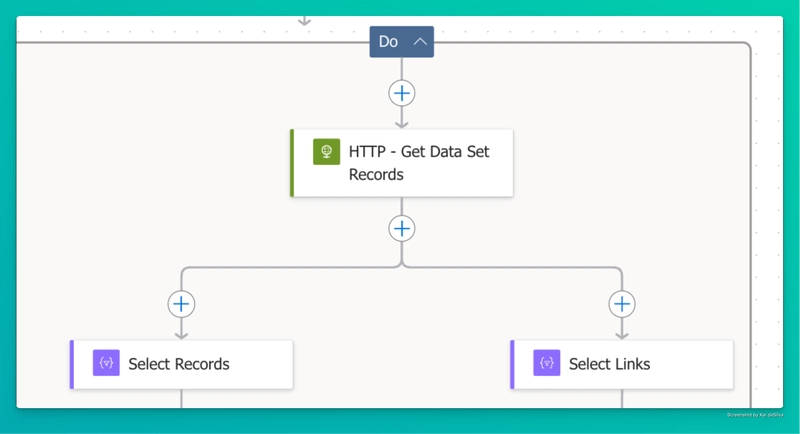
Part 1: Add Records to the Filtered Dataset
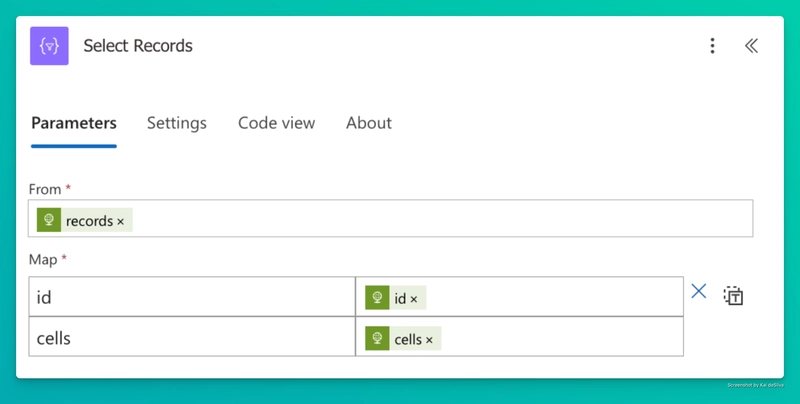
- Use the Select action to extract relevant fields from the API response.
{

  "id": @{item()?['id']},

  "cells": @{item()?['cells']}

}
- Once you’ve selected the Records array from the HTTP response, you have to use an “Apply to each” on the records.
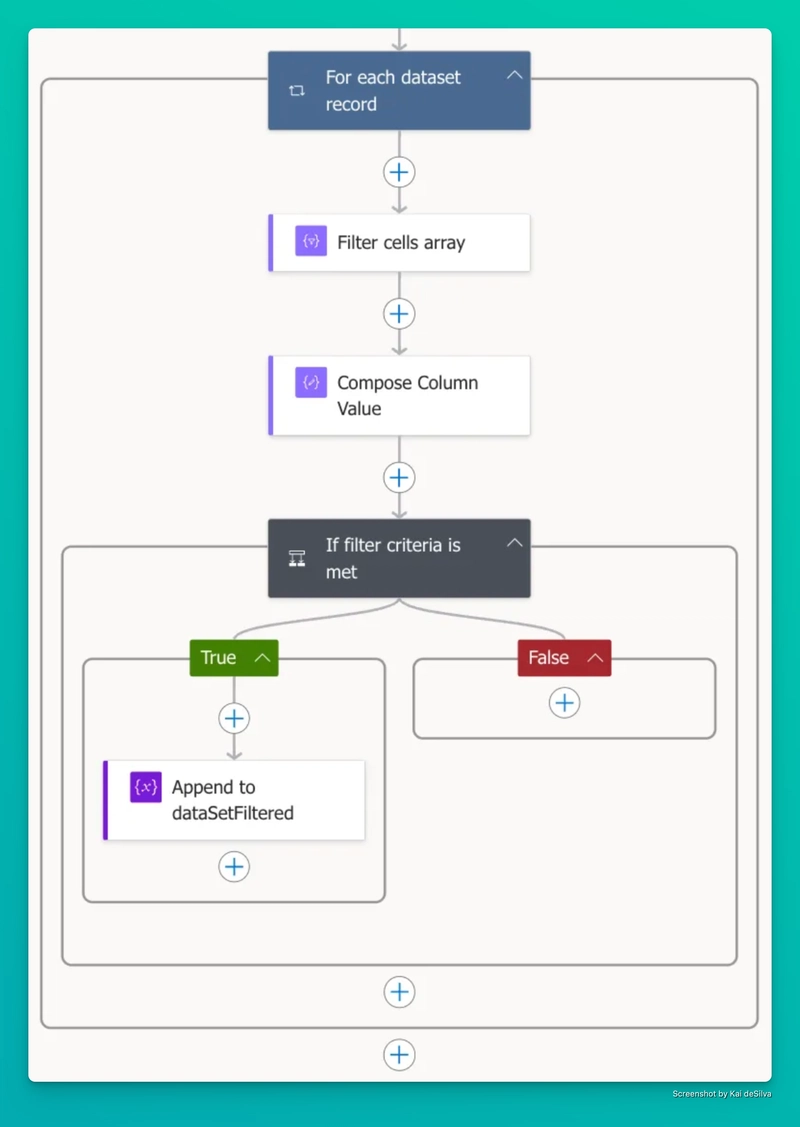
For each record, we can determine if the cell value matches our filter criteria we created in the beginning.
- All we need is the value of the cell we’re filtering by, so we can ignore the rest of the data. To find the
fieldIdfor the cell, simply run the Flow and check the data in the HTTP response. You’ll see thefieldIdand its respective value listed there, making it easy to identify the one you need. Here’s my Filter Query once you’ve found it and updated your Compose action:
@equals(@{item()?['fieldId']},@{outputs('Compose_Data_Set_Field_Id')})
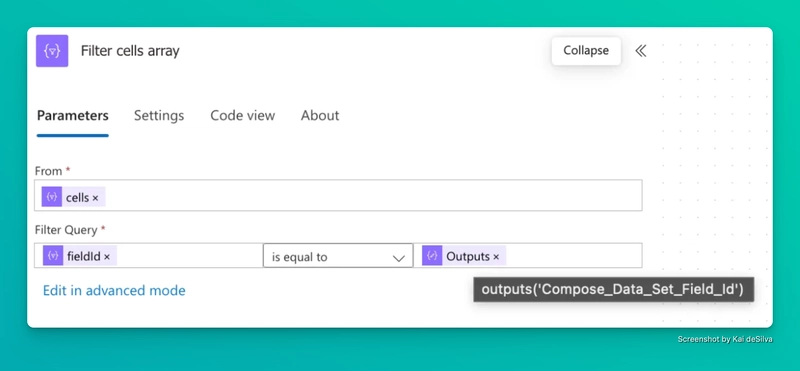
We just need the exact cell we’re after.
- To get the value of the column, we just need to get the value of the first result from the Filtered cells array. Here’s my expression that gets the value of the cell:
first(outputs('Filter_cells_array')?['body'])['value']
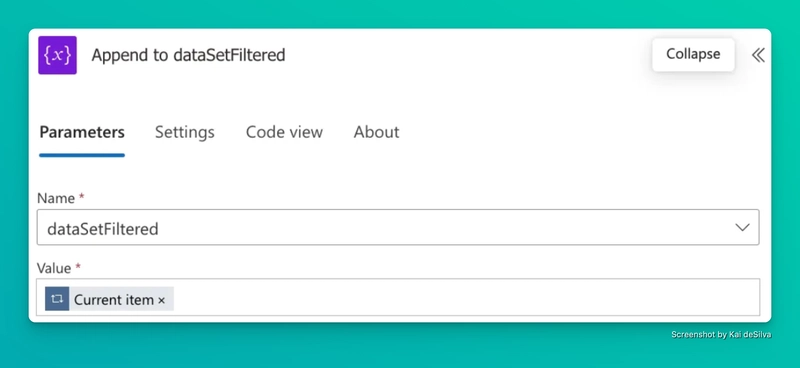
- Append matching records to the Filtered Dataset Array Variable.
If Column Value = Filter Criteria- My filter criteria compose and the column value compose must match for the condition to be true. If it is, it’ll append to the
dataSetFilteredarray.
"equals": [

  "@outputs('Compose_Column_Value')",

  "@outputs('Compose_Filter_Criteria')"

]
Part 2: Fetch the Next Page URI:
- Use another Select action to extract the
nextPageURI from the API response. - If a
nextPageexists, update thepageHrefvariable to point to it.
3. Set the Loop Condition:
Configure the "Do Until" action to stop when there’s no
nextPageURI.This expression will check the original HTTP request, but you could also check your
nextPageURI variable or even the Select Links array for a length greater than 1:
@less(@{length(body('HTTP_-_Get_Data_Set_Records')?['links'])},1)
Step 3: Take Your Result and Run
Now that you’ve got your filtered Data Set, the fun part begins—you can do whatever you want with the results! In my case, I was filtering by a unique value, so my filtered array only returned one result. From there, I grabbed the Record ID (pulled during the Do Until loop) and used it to update the specific Data Set record I needed through the Process Street API.
What Can You Do With the Results?
Here are a few ideas to get you started:
Update Records: Take the Record ID(s) from your filtered results and update fields or statuses in your Data Set with ease.
Trigger New Workflows: Use the filtered data to kick off other automations in tools like Power Automate, Zapier, or even custom API integrations.
Build Reports: Export your filtered array to a spreadsheet for reporting, analysis, or sharing with your team.
Send Notifications: Use the results to send tailored updates—whether it’s an email, Slack message, or something else your team needs.
The best part is that this filtered array puts you in control. Whether you’re updating records, sharing insights, or triggering workflows, you now have a streamlined way to act on the exact data you care about.
So, go ahead — take your result and run with it!
Copy-Paste JSON for the “Do Until” Action
To save you time, here’s the JSON for the “Do Until” action you can use directly in Power Automate. This action retrieves and filters data sets by column iteratively until all pages of data have been processed.
{

  "nodeId": "Do_until_links_lt_1",

  "serializedOperation": {

    "type": "Until",

    "expression": "@less(length(body('HTTP_-_Get_Data_Set_Records')?['links']),1)",

    "limit": {

      "count": 60,

      "timeout": "PT1H"

    },

    "actions": {

      "HTTP_-_Get_Data_Set_Records": {

        "type": "Http",

        "inputs": {

          "uri": "@variables('pageHref')",

          "method": "GET",

          "headers": {

            "X-API-Key": "@{outputs('Compose_X-API-Key')}",

            "Content-Type": "application/json"

          }

        },

        "metadata": {

          "operationMetadataId": "9e8e225a-9a5a-4f4e-88cc-ef474d1273de"

        }

      },

      "Select_Records": {

        "type": "Select",

        "inputs": {

          "from": "@body('HTTP_-_Get_Data_Set_Records')?['records']",

          "select": {

            "id": "@item()?['id']",

            "cells": "@item()?['cells']"

          }

        },

        "runAfter": {

          "HTTP_-_Get_Data_Set_Records": ["Succeeded"]

        }

      },

      "Select_Links": {

        "type": "Select",

        "inputs": {

          "from": "@body('HTTP_-_Get_Data_Set_Records')?['links']",

          "select": {

            "nextPage": "@item()?['href']"

          }

        },

        "runAfter": {

          "HTTP_-_Get_Data_Set_Records": ["Succeeded"]

        }

      },

      "Set_pageHref": {

        "type": "SetVariable",

        "inputs": {

          "name": "pageHref",

          "value": "@body('Select_Links')?[0]?['nextPage']"

        },

        "runAfter": {

          "Select_Links": ["Succeeded"]

        }

      },

      "For_each_dataset_record": {

        "type": "Foreach",

        "foreach": "@body('Select_Records')",

        "actions": {

          "Filter_cells_array": {

            "type": "Query",

            "inputs": {

              "from": "@item()?['cells']",

              "where": "@equals(item()?['fieldId'],outputs('Compose_Data_Set_Field_Id'))"

            }

          },

          "Compose_Column_Value": {

            "type": "Compose",

            "inputs": "@first(outputs('Filter_cells_array')?['body'])['value']",

            "runAfter": {

              "Filter_cells_array": ["Succeeded"]

            }

          },

          "If_filter_criteria_is_met": {

            "type": "If",

            "expression": {

              "and": [

                {

                  "equals": [

                    "@outputs('Compose_Column_Value')",

                    "@outputs('Compose_Filter_Criteria')"

                  ]

                }

              ]

            },

            "actions": {

              "Append_to_dataSetFiltered": {

                "type": "AppendToArrayVariable",

                "inputs": {

                  "name": "dataSetFiltered",

                  "value": "@items('For_each_dataset_record')"

                }

              }

            },

            "else": {

              "actions": {}

            },

            "runAfter": {

              "Compose_Column_Value": ["Succeeded"]

            }

          }

        },

        "runAfter": {

          "Select_Records": ["Succeeded"]

        }

      }

    },

    "runAfter": {

      "Compose_X-API-Key": ["Succeeded"]

    }

  },

  "allConnectionData": {},

  "staticResults": {},

  "isScopeNode": true,

  "mslaNode": true

}
Suggestions for Process Street Developers
To streamline data filtering without requiring Zapier, Process Street developers could consider the following API improvements:
Built-in Filtering: Implement server-side filtering with query parameters (e.g.,/records?fieldId=123&value=example).
Paginated Data Handling: Add optional server-side merging of paginated results to simplify client-side processing.
Custom Connectors: Create actions for Data Sets within the Power Automate connector that include query filtering of the data.
Power Automate OData Filters
With Power Automate, I’m very accustomed to using OData queries to filter by columns within a SharePoint list or a site’s columns. This would make the requests simpler and reduce load on any and all servers. (e.g., /records?$filter=City eq 'Miami').
GraphQL Alternative API
Brian McKeown on the Workflow Wizards slack helped me out here as well in suggesting Process Street enhance their API using GraphQL rather than REST. Would love to see this happen!
GraphQL is the Future for APIs
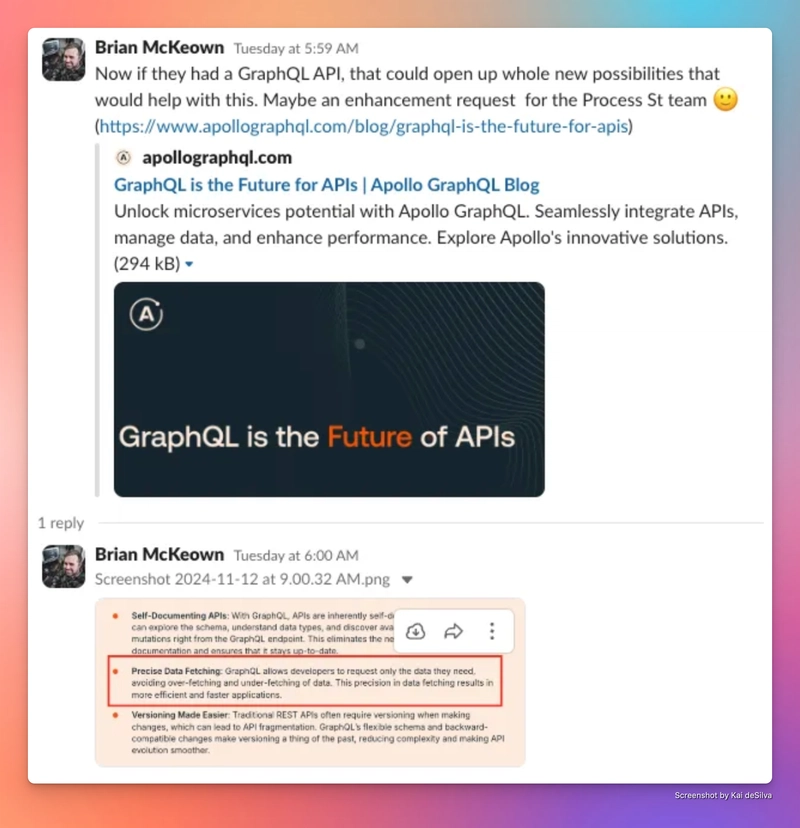
Screenshot From the Workflow Wizards Slack
Conclusion
By combining variables, a "Do Until" loop, and filtering logic, Power Automate enables scalable filtering of Process Street datasets. This approach handles pagination seamlessly and allows for dynamic filtering based on your criteria.
I’m working pretty closely with Process Street on few projects, but the API and automations are definitely at the top of my list. If updating the API isn’t too high on their list, I might tweak this automation to work as a Child Flow. That way, you could run it from any other Flow just by passing a few values!
Can your business afford to keep putting off process work?
If you answered no to the above question, let's have a quick conversation. By diving into the intricacies of your daily operations, we enable you to unlock new efficiencies and enhance the overall performance of your business processes. We don't just offer one-size-fits-all solutions; instead, we craft customized strategies that align with your company's goals and culture.
Improvizations Process Strategy Enablement
Ready to save time and simplify your workflows? Visit us at improvizations.com/process-services and let us do the heavy lifting for your business.