



You're excited. You're diving into Node.js, maybe building your first React app with a Node backend or maybe even just getting started with Reactjs and you have to install node.js, or even more so, following an online tutorial. The first step? Install Node.js. So, you either head to the official Node.js website and grab the installer, or you type a familiar command into your terminal:
sudo apt install nodejs, brew install node, choco install nodejs,or sudo pacman -S nodejs
Stop right there!
While these methods seem straightforward – and are often taught in introductory guides – they are common pitfalls that can lead to frustration, permission headaches, and security vulnerabilities down the line. There's a much better way, and understanding why the common methods fall short is the first step to a smoother, more professional development experience.
Let's break down why installing Node.js directly or via your operating system's package manager is strongly discouraged.
The Pitfalls of OS Package Managers (apt, brew, choco, etc.)
Using your system's package manager (like APT on Debian/Ubuntu, Homebrew on macOS, or Chocolatey on Windows) might feel natural, but it introduces several significant problems for Node.js development:
Outdated Versions: Node.js moves fast! New features, performance improvements, and security patches are released frequently. OS package managers, whether official or community-maintained, often lag considerably behind the official Node.js release schedule. You might end up developing on an older, unsupported, or less secure version without even realizing it.
Inconsistent Installations: How and where Node.js and its package manager, npm, are installed can vary wildly between different operating systems and their package managers. This lack of standardization can sometimes lead to unexpected path issues or compatibility problems, especially when working in teams or deploying applications.
The
sudoNightmare (Permissions & Security):- one I saw my student fall into yesterday after not following instructions early on(the origin of me writing this post by the way) This is perhaps the most critical issue, especially on Linux and macOS. When Node.js is installed system-wide via a package manager, installing global npm packages (tools you want to use anywhere, installed vianpm install -g <package_name>) often requiressudo(administrator/root privileges).
Why is this bad? Running
npm install -gwithsudomeans you are giving root access to potentially thousands of lines of code (including dependencies) downloaded from the internet. A malicious package could, in theory, wreak havoc on your system. It's a significant security risk that's easily avoidable.It's Inconvenient: Constantly typing your password for global installs gets tedious and breaks development flow.
The Problem with Direct Downloads (Nodejs.org Installers)
Downloading the installer directly from the Node.js website seems like the official, sanctioned method. While it avoids the version lag of some package managers, it often shares the same critical flaw on macOS and Linux:
Still
sudofor Global Packages: The default installers often set up Node.js in a way that still requiressudofor installing global packages (npm install -g ...). You're facing the same security risks and inconveniences mentioned above.Version Juggling is Manual: Need to test your project on an older Node.js version? Or try out the latest bleeding-edge features? With a direct install, you'd have to manually uninstall and reinstall different versions – a cumbersome process prone to errors.
The Superior Approach: Node Version Managers
If the common methods are flawed, what's the right way? Use a Node Version Manager (NVM).
Think of a version manager as a dedicated tool specifically designed to handle Node.js installations and environments. It installs Node.js in a way that avoids the pitfalls of system-wide installations.
Popular Node Version Managers:
nvm (Node Version Manager): The most popular choice, especially on Linux and macOS. It installs Node.js within your user directory, completely avoiding the need forsudowhen installing global packages. It makes switching between different Node.js versions effortless. (GitHub - nvm-sh/nvm).
I have used this for years.I used pnpm, you can use npm
# Download and install nvm:

curl -o- https://raw.githubusercontent.com/nvm-sh/nvm/v0.40.2/install.sh | bash


# in lieu of restarting the shell

\. "$HOME/.nvm/nvm.sh"


# Download and install Node.js:

nvm install 22


# Verify the Node.js version:

node -v # Should print "v22.14.0".

nvm current # Should print "v22.14.0".


# Download and install pnpm:

corepack enable pnpm


# Verify pnpm version:

pnpm -v
fnm (Fast Node Manager): Built in Rust for speed, fnm is another excellent cross-platform alternative focusing on performance and ease of use. (GitHub - Schniz/fnm)
# Download and install fnm:

curl -o- https://fnm.vercel.app/install | bash # For macOS and Linux

# OR

winget install Schniz.fnm # For windows


# Download and install Node.js:

fnm install 22


# Verify the Node.js version:

node -v # Should print "v22.14.0".


# Download and install pnpm:

corepack enable pnpm


# Verify pnpm version:

pnpm -v
There are a considerable number of mentions that are managed by the community:
Volta: Which is a newer, fast option that works across macOS, Linux, and Windows. Volta can intelligently manage Node versions (and other tools like Yarn) based on your project's
package.json, ensuring seamless switching as you move between projects. (Volta.sh)n: Which is a long-standing, simple alternative primarily for macOS and Linux. (GitHub - tj/n)
Why Use a Version Manager?
No More sudo for Global Packages: Installs Node.js and global packages within your user space, eliminating the need for root privileges and enhancing security.
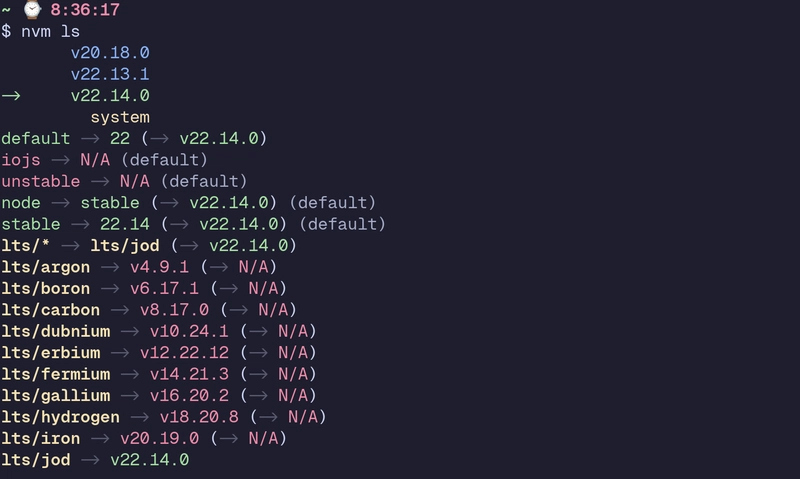
Effortless Version Switching: Easily install multiple Node.js versions side-by-side and switch between them with a simple command (e.g.,nvm use 20,nvm use 22). This is invaluable for testing compatibility or working on projects requiring different Node versions.
Project-Specific Versions: Some managers (like Volta, or nvm with .nvmrc files) allow you to define a specific Node.js version for each project, ensuring consistency across development teams.
Keeps Your System Clean: Avoids scattering Node.js files in system directories, keeping the installation self-contained and easier to manage or remove.
Access to Latest Versions: Quickly install the latest Node.js releases as soon as they are available.
nvm install current: installs the latest current version where you can test new features on the go 🚀.
nvm install --lts: will install the latest stable version(LTS: Long-Term Support). See how nice and smooth that is?😉
Making the Switch
If you currently have Node.js installed via a package manager or a direct download, it's highly recommended to uninstall it completely before installing a version manager. Search online for instructions specific to how you initially installed it (e.g., sudo apt uninstall nodejs, brew uninstall nodejs... which ever way you installed it).
Once your system is clean, follow the installation instructions for your chosen version manager (nvm, fnm, volta, etc.). The setup is usually straightforward, involving a simple script or installer.
The scripts for the node.js recommended managers nvm and fnm are given above.
Conclusion: Start Your Node.js Journey Right
While grabbing the first installer you find might seem like the quickest way to get started with Node.js, we have seen that it often leads to avoidable problems. By taking a few extra minutes to install a Node Version Manager like nvm, fnm or any other, you set yourself up for a significantly smoother, safer, and more flexible development workflow. You gain control over your environment, enhance your security posture, and make managing different Node.js versions trivial.
Don't let a sub-optimal installation method hinder your progress. Embrace version managers – your future self will thank you.