



Table of Contents
- Introduction
- What are Permissions in Linux?
- Types of Access and Numerical Value
- Core Basic Permission Commands
- Real-World Scenario: File Permissions in a Cloud Project
- Conclusion
- Let's Connect
Introduction
Welcome back to Day 7!
Today, I focused on something every Cloud System Admin must understand: Basic File Permissions in Linux.
You can’t manage a secure environment without understanding who can read, write, or execute files and directories.
Let’s simply break it all down.
What are Permissions in Linux?
Every file and directory in Linux has permissions that control who can do what.
There are 3 main categories of users:
Owner – The creator of the file
Group – The group assigned to the file
Others – Everyone else
Types of Access and Numerical Value
We have three types of access which are; read(r), write(w) and execute(x). These access are granted to the owner, group and others with different levels of permissions. Let's take a look at the table on these levels of permissions with their numerical value.
| Symbol | Numeric | Meaning |
|---|---|---|
| r | read | 4 |
| w | write | 2 |
| x | execute | 1 |
| - | deny | 0 |
| rwx | read+write+execute | 4+2+1 = 7 |
| rw- | read+write+deny | 4+2+0 = 6 |
| r-x | read+deny+execute | 4+0+1 = 5 |
| r-- | read+deny+deny | 4+0+0 = 4 |
| -w- | deny+write+deny | 0+2+0 = 2 |
| --x | deny+deny+execute | 0+0+1 = 1 |
| --- | deny+deny+deny = No Access | 0+0+0 = 0 |
Core Basic Permission Commands
| File Permission Commands | Purpose |
|---|---|
ls -l 'filename' | Check permission of a file |
ls -ld 'file or directory name' | Check/Verify permission of a file or directory |
chown 'user name' 'file/directory' | Change user ownership of a file or directory |
chgrp 'groupname' 'file/directory | Change group ownership of a file or directory |
chown 'username':'groupname' 'file or directory' | Change user and group ownership together |
chmod o-rwx 'file or directory' | Change/Modify permissions for others |
chmod g-rwx 'file or directory' | Change/Modify permissions (removes rwx) for groups |
chmod u-rwx 'file or directory' | Change/Modify permissions (removes rwx)for user/owner |
chmod u+rwx 'file or directory' | Change/Modify permissions (adds rwx)for user/owner |
chmod u+rwx, g+rwx,o+rwx 'file or directory' /or chmod ugo+rwx | Change/Modify permissions (adds rwx)for user/owner, group and others same time. |
chmod 750 'file or directory' | Sets permission using numeric values |
Real-World Scenario: File Permissions in a Cloud Project
Now, imagine you are a Linux engineer onboarding new hires for a cloud project. You want to grant them permissions as required for files and directories and avoid security breaches.
Let’s walk through it step by step.
Create directory (devopsproject)
Create Files in the directory (devdeploy.sh)
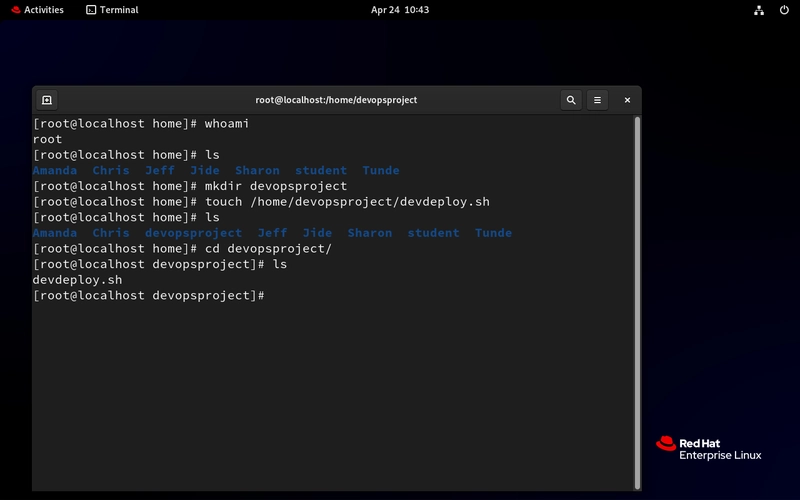
- Check current file and directory permissions
ls -ld </home/deveopsproject /home/deveopsproject/devdeploy.sh
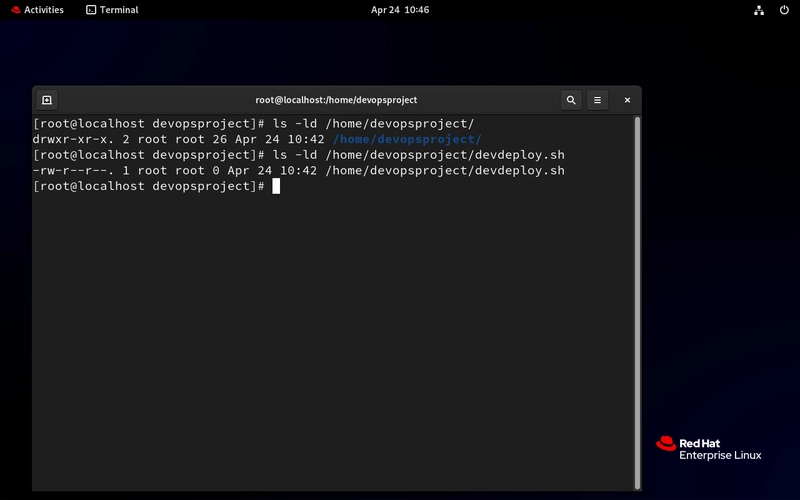
You will notice the directory or folders starts with d and files start with - .
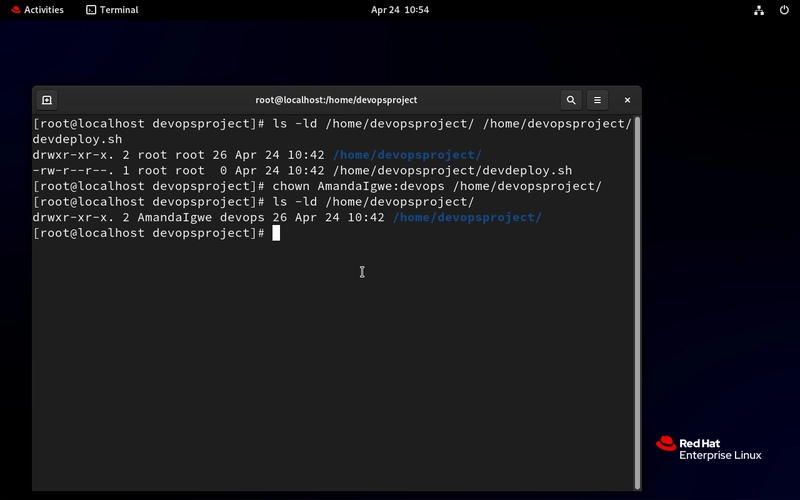
- Change user/ownership and group ownership and verify it
chown <user>:<group> <dir>

ls ld </home/deveopsproject>
- Add required access
chmod 750 </home/devopsproject/>
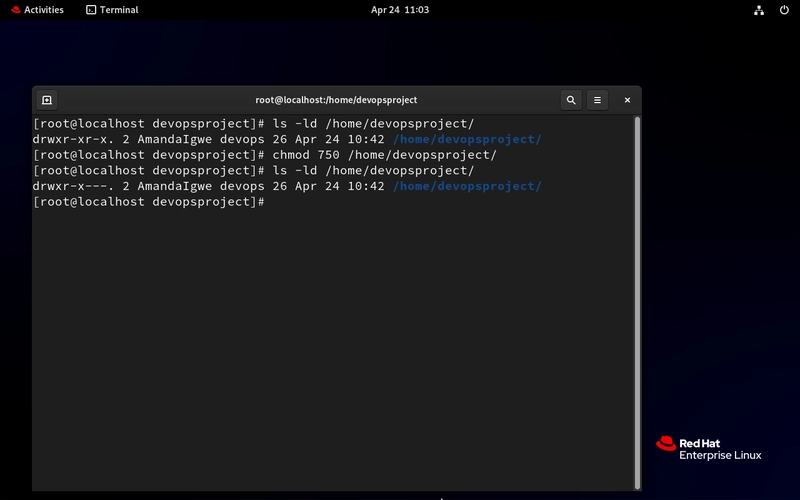
- What it means:
7 = rwx (owner/user can do everything)
5 = r-x (group can only read and execute/run it)
0 = --- (others have no permission to read, write or execute.)
- Prevent Dangerous Mistakes (Never do chmod 777)
chmod 777 <file/dir>
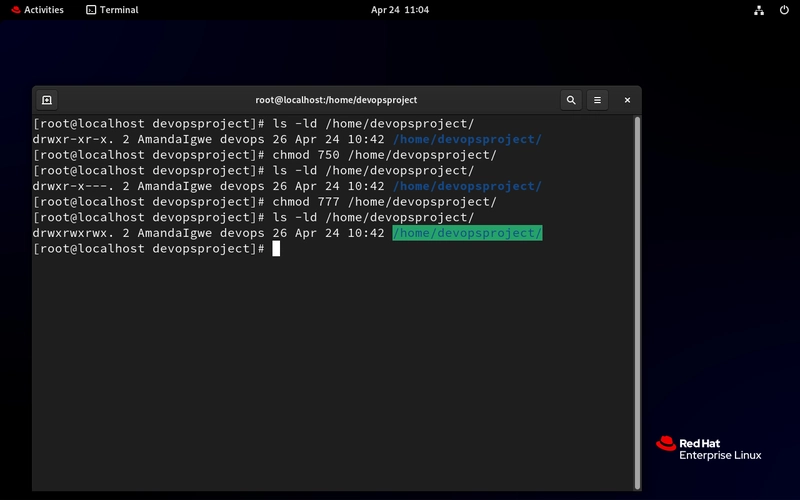
That gives everyone full access (read/write/execute). Not secure in production. It means anyone, anywhere, can view it. Never do that!
Note the following output meaning: drwxr-xr-x. 2 AmandaIgwe devops
- drwx = directory and permission for user/owner
- r-x = permission for group
- r-x = permission for others
- . = inactive acl (we see this in day 8)
- 2 = Number of hard links (directory)
- AmandaIgwe = stands for the user/owner of the directory
- devops = stands for the group owner
And that's it!
Conclusion
Understanding file permissions isn’t optional. It is critical to being a responsible Linux or DevOps engineer. Whether you are working on deployments, automation scripts, or shared infrastructure, these permission controls keep things safe and organized. Always think of security first!
If this is helpful to you, feel free to bookmark, comment, like and follow me for Day 6!
Let's Connect!
If you want to connect or share your journey, feel free to reach out on LinkedIn.
I am always happy to learn and build with others in the tech space.
#30DaysLinuxChallenge #Redhat#RHCSA #RHCE #CloudWhistler #Linux #Rhel #Ansible #Vim #CloudComputing #DevOps #LinuxAutomation #IaC #SysAdmin#CloudEngineer