



Table of Contents
- Introduction
- What is the
findCommand? - Core
findCommands - Real-World Scenario:
findCommand - Conclusion
- Let's Connect
Introduction
Welcome back to Day 14 of this practical Linux challenge! Today, we are diving into one of the most useful Linux commands: find.
This command helps you search for files and folders fast, flexible, and powerful.
What is the find Command?
The find command is used to look for files and directories in your system based on conditions like:
- Name
- Size
- File type
- Date modified
- User ownership
- And more...
This is especially useful in production environments where systems grow large and messy fast.
Core find Commands
Basic Syntax for find is
find [path] [condition] [action]


# Example


find /home -name "file.txt"    - # This searches for file.txt inside the /home directory.
More commonly used find commands are listed in the table below.
find command | Meaning |
|---|---|
-name | Search by file name |
-type | File type: f for file, d for directory |
-mtime | Files modified X days ago (+, -, or exact number) |
-size | Search by file size (e.g., +5M for greater than 5MB) |
-user | Owned by a specific user |
-exec | Run command on found files |
-delete | Deletes the files (use with caution!) |
Real-World Scenario: find Command
- Find a File by Name
bash

find / -name "*.conf"     - # Searches for a file that has .conf inside /

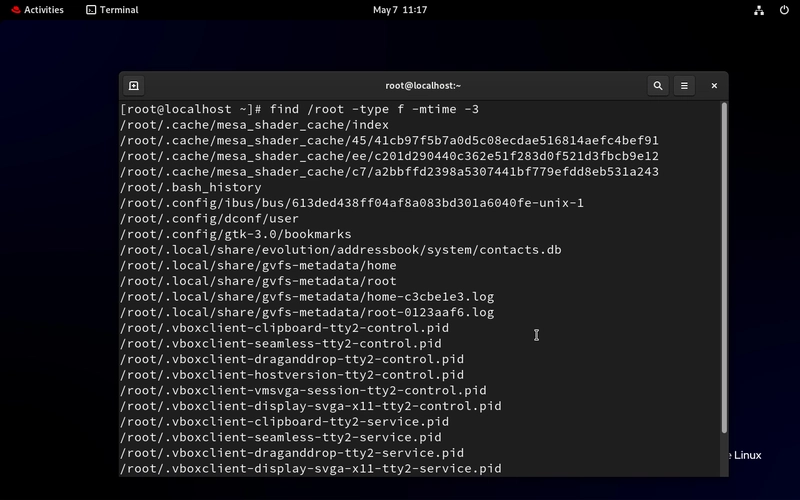
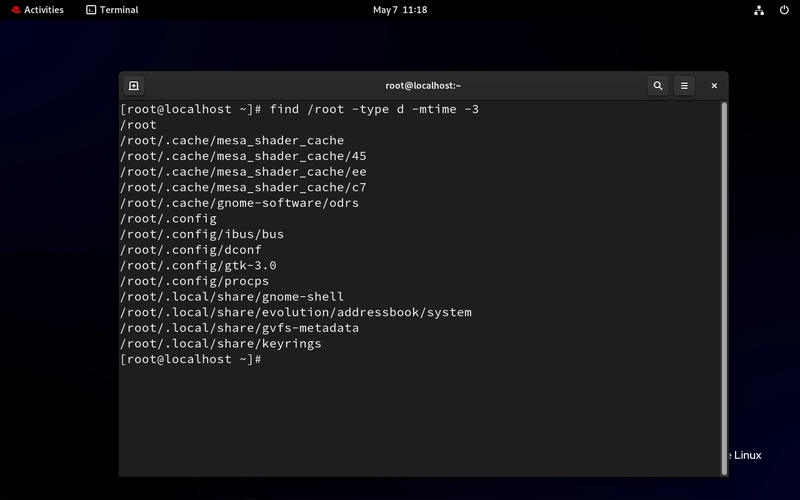
- Find Files Modified in the Last 3 Days
bash


find /root -type f -mtime -3       - # Useful for checking recent file changes or uploads.


find /root -type d -mtime -3       - # use d for directories or folders
- Find Large Files (More Than 100MB)
find / -type f -size +100M    - # Great for finding what’s eating up disk space.


find / -type f -size -20k   - # check files less than 20kb

- Find Files and Delete Them
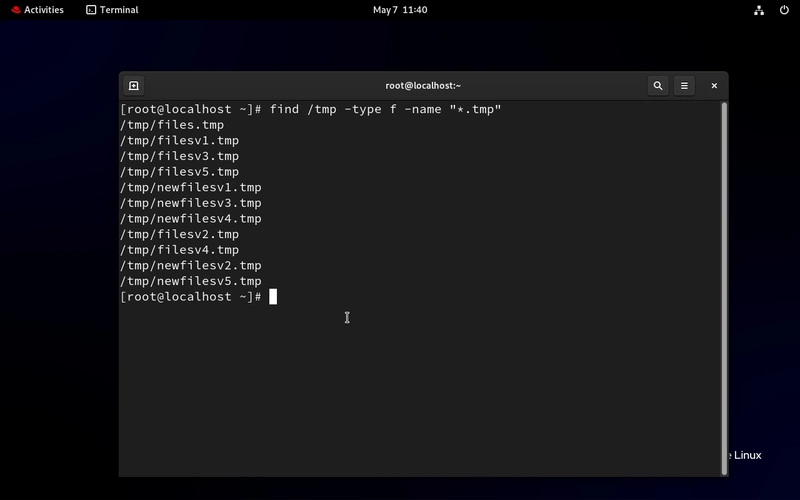
touch /tmp/files.tmp /tmp/newfilesv{1..5}.tmp   # let's create new files in the /tmp folder


 ls /tmp  - # to verify the created files


 find /tmp -type f -name "*.tmp"     - # find the files with .tmp in /tmp


find /tmp -type f -name "*.tmp" -delete    - # Deletes all .tmp files in /tmp


Let's say your/var/log directory is filling up fast, and you need to:
Find all .log files older than 7 days.
Delete them to save space.
We will first check what you will delete.
find /var/log -name "*.log" -mtime +7
- Now you are sure of what to delete, you can delete!
find /var/log -name "*.log" -mtime +7 -delete
We have saved disk space! Great.
Conclusion
You can use man find to explore more options on your RHEL system. You will be surprised how much power this one command holds.
You can also use some wildcards like:
- * means - Any number of characters
- ? means - A single character
- [a-z] means - Any letter a to z
If you use
file*, you are telling Linux: “Find anything that starts with ‘file’.”
If this is helpful to you, feel free to bookmark, comment, like and follow me for Day 15!
Let's Connect!
If you want to connect or share your journey, feel free to reach out on LinkedIn.
I am always happy to learn and build with others in the tech space.
#30DaysLinuxChallenge #Redhat#RHCSA #RHCE #CloudWhistler #Linux #Rhel #Ansible #Vim #CloudComputing #DevOps #LinuxAutomation #IaC #SysAdmin#CloudEngineer