



Effective user management is a cornerstone of Active Directory (AD) administration, enabling organizations to control access, enforce security policies, and streamline identity management within a Windows Server domain. Configuring user management operations involves creating, modifying, and securing user accounts, as well as managing group memberships and permissions.
This guide outlines the process for managing user operations in a domain like tailwind.local, using domain controllers such as TAILWIND-DC1.
We will create three Organization Units (OUs) Sydney, Melbourne, and Brisbane.
Create Organizational Units
In TAILWIND-DC1, open Active Directory Users and Computers from the Tools menu of the Server Manager console. Right-click on the tailwindtraders.internal domain. Select New, then Organizational Unit.


In the New Object - Organizational Unit dialog box, set the name to Sydney and click OK.
Repeat this process to create the Melbourne OU and the Brisbane OU.


Create users
In this task, you create a user and configure account properties such as Account Expiration Date.
In TAILWIND-DC1, open Active Directory Users and Computers (or Administrative Center). Right-click on the Sydney OU. Select New, then User.
Type SydneyContractor in the Full name and User Logon name fields and click Next. Specify a password, and then confirm the password. Click Next and Finish.


Select the Sydney OU. In the Sydney OU, double-click the SydneyContractor user account. In the Account tab, in the Account expires section, select End of: and set the date to Jan 1, 2030. Click OK.


Right-click the SydneyContractor user and select Copy.
Type MelbourneContractor in the Full name and User Logon name fields. Click Next. Specify a password, and then confirm the password. Click Next and Finish.


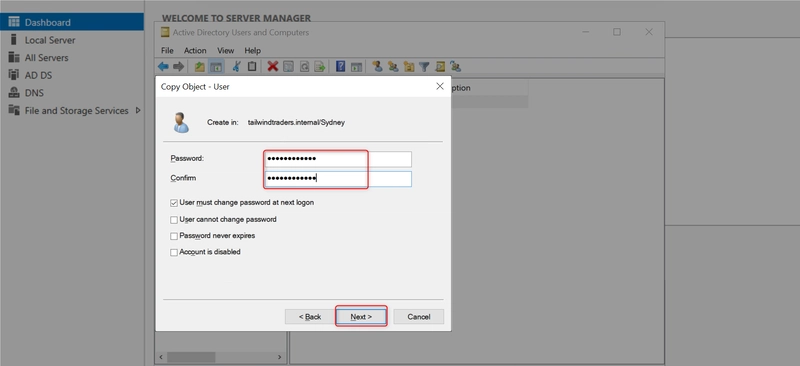

By repeating same process, Right-click the SydneyContractor user and select Copy.
Type BrisbaneContractor in the Full name and User Logon name fields. Click Next. Specify a password and then confirm the password. Click Next and Finish.


Drag the MelbourneContractor user to the Melbourne OU. If a warning about moving objects appears, click Yes.
Repeat same process by Dragging the BrisbaneContractor user to the Brisbane OU. If a warning about moving objects appears, click Yes also.
Create the Sydney Admins group
In this procedure, you establish a new security group titled Sydney Administrators.
In TAILWIND-DC1, open Active Directory Users and Computers.
Right click the Sydney OU, and select New, then Group.
Type Sydney Administrators in Group name and select Universal in group scope. Click OK.


In the Sydney OU, double-click the SydneyContractor User account. In the Member Of tab, click Add.
Type Sydney Administrators. Click Check Names.
Click OK, then click OK.


Configure a user as a Protected User
In this task, you configure the SydneyContractor user account as a protected user
In TAILWIND-DC1, open Active Directory Users and Computers (or Administrative Center).
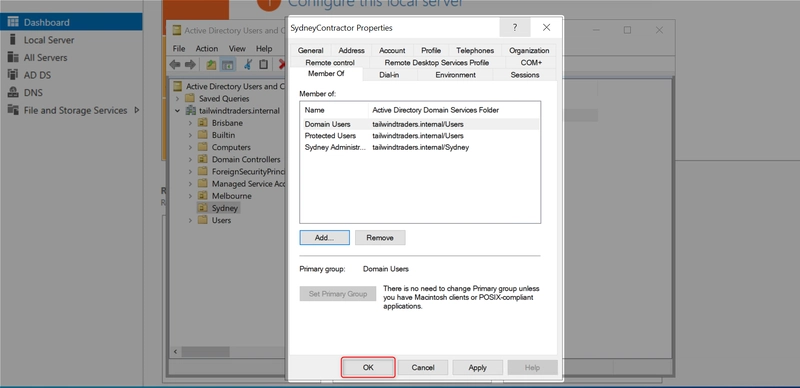
Navigate to the Sydney OU and double-click the SydneyContractor User account.
In the Member Of tab, click Add.
Type Protected Users.
Click Check Names.
Click OK, then click OK.


Delegate Security Permissions to an OU to a security group
In this task, you delegate the ability to reset passwords and force password change to the Sydney Administrators group over accounts in the Sydney OU.
In TAILWIND-DC1, open Active Directory Users and Computers.
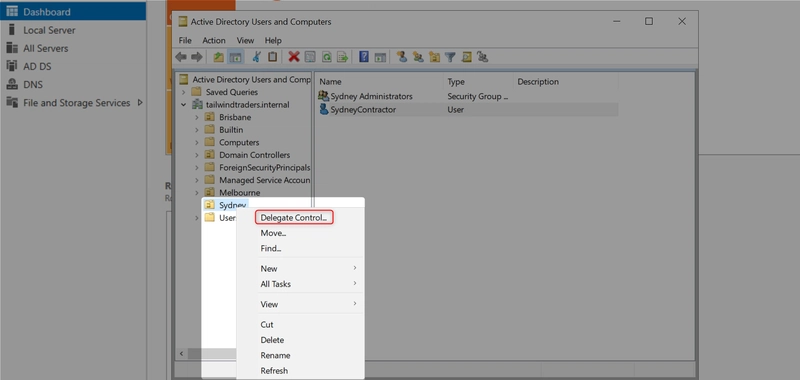
Right-click the Sydney OU and click Delegate Control.
On the Welcome page of the Delegation of Control Wizard, click Next.
Click Add and type Sydney Administrators.
Click Check Names.
Click OK and click Next.
On the Tasks to Delegate page, select the Reset user passwords and force password change at next logon option. Click Next.
Click Finish.


Configure City Attribute for a User
In this task, you configure a city attribute for a user account and then use the Find attribute to verify that the user is present.
In TAILWIND-DC1, open Active Directory Users and Computers.
Select the Sydney OU, right-click the SydneyContractor user account, and click Properties.
In the Address tab of the Sydney Contractor properties, set the City field to Sydney and click OK.


In Active Directory Users and Computers, right-click Tailwindtrader.internal and click Find.

In the Advanced tab of the Find Users, Contacts, and Groups dialog box, select Field, then User, then City. Set Condition to Is (exactly). Set Value to Sydney. Click Find Now.
Close the Find Users, Contacts, and Groups dialog box.


Click Yes on the Find in the Directory pop-up.
Verify that user SydneyContractor is listed in the Search results.


Disable the Melbourne Contractor User
In this task, you disable the Melbourne Contractor user.
In TAILWIND-DC1, open Active Directory Users and Computers, and then open the Melbourne OU.
In the Melbourne OU, right-click MelbourneContractor and click Disable Account.
Click OK.


Reset the password of the Brisbane Contractor User
In this task, you reset the password of the BrisbaneContractor user.
In TAILWIND-DC1, open Active Directory Users and Computers, and then open the Brisbane OU.
Right-click the BrisbaneContractor user and select Reset Password.
On the Reset Password dialog box, type the password twice and select OK. Click OK again in the dialog that notifies you that the password has been changed


Configuring user management operations in Active Directory enhances security and efficiency by enabling precise control over accounts and policies. By creating users, managing groups, securing accounts, and maintaining operations, administrators can support a robust domain environment.
SOCIAL SHARE CARD GENERATOR