
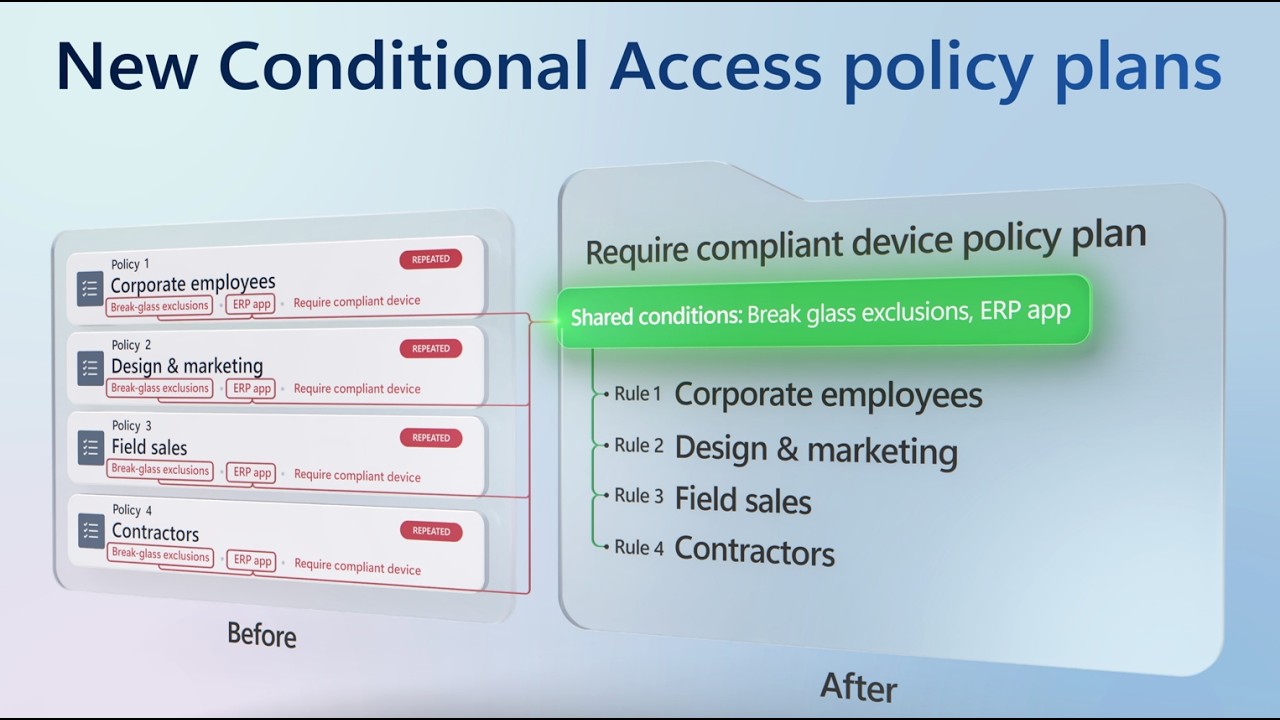
Group related Conditional Access policies into policy plans and define users, apps and conditions once for every rule in the plan. Add a rule for each requirement, like phishing-resistant MFA or compliant devices, and keep the shared scope in one place.
Build a plan around a user group, like headquarters staff, or a shared condition, like high agent risk, and start from templates. Merge existing policies into a plan with the migration tool. It pulls shared conditions up to the plan and turns each policy into a rule. Your current policies stay enforced until you cut over.
Etan Basseri, Principal Product Manager, Microsoft Entra, shares how plans and rules fit together in the Microsoft Entra admin center.
👥 Who it's for:
Identity and security admins who manage Conditional Access in Microsoft Entra, and architects planning how to organize or migrate large policy sets, including access controls for AI agents.
⏱️ Chapters:
00:00 Conditional Access policy plans in Microsoft Entra
00:48 Track policies beyond naming prefixes
01:29 How shared conditions and rules work
02:41 Create a policy plan for HQ users
03:43 Add a phishing-resistant MFA rule
04:43 Add a compliant device rule
05:51 Block high-risk AI agents in one plan
06:56 Migrate existing policies into a plan
08:11 Keep policies enforced until cutover
What are Conditional Access policy plans? They organize access controls around an objective, either a persona like employees, external guests or administrators, or a security goal like requiring compliant devices or securing agent activity. Plan-level attributes cover identities, resources and applications, user actions and authentication context, plus shared conditions like risk levels, devices, network locations and client app types. Each rule layers its own conditions and grant or session controls on top. Plans live in a new Policy plans view, next to your existing policy list under Conditional Access.
The headquarters plan in the demo includes the HQ All Users group and excludes a break-glass group to prevent lockouts. Its first rule requires phishing-resistant MFA through authentication strength and starts in report-only mode. A second rule requires devices marked as compliant. Neither rule repeats the included or excluded groups.
The agent plan, built from a template, sets high agent risk as its shared condition. Separate rules block high-risk agent users and high-risk autonomous agents acting with their own agent-specific permissions.
How do you move existing policies over? Filter your policy list, for example by a branch office naming prefix, select the policies and merge them into one plan. The preview shows which resources become shared conditions and how each policy maps to a rule, with its identities, locations, grant and session settings. After you enforce the new plan, turn off or delete the original policies.
🔗 Related links:
► Check out https://aka.ms/ConditionalAccessPolicyPlans
► Unfamiliar with Microsoft Mechanics?
Microsoft’s Official Video Series for IT
— Subscribe https://www.youtube.com/c/MicrosoftMechanicsSeries
— Microsoft Tech Community: https://techcommunity.microsoft.com/t5/microsoft-mechanics-blog/bg-p/MicrosoftMechanicsBlog
— Podcast: https://microsoftmechanics.libsyn.com/podcast
►Join us on social:
— https://twitter.com/MSFTMechanics
— https://www.linkedin.com/company/microsoft-mechanics/
— https://www.instagram.com/msftmechanics/
— https://www.tiktok.com/@msftmechanics
#ConditionalAccess #MicrosoftEntra #ZeroTrust #IdentitySecurity #AIAgents
Build a plan around a user group, like headquarters staff, or a shared condition, like high agent risk, and start from templates. Merge existing policies into a plan with the migration tool. It pulls shared conditions up to the plan and turns each policy into a rule. Your current policies stay enforced until you cut over.
Etan Basseri, Principal Product Manager, Microsoft Entra, shares how plans and rules fit together in the Microsoft Entra admin center.
👥 Who it's for:
Identity and security admins who manage Conditional Access in Microsoft Entra, and architects planning how to organize or migrate large policy sets, including access controls for AI agents.
⏱️ Chapters:
00:00 Conditional Access policy plans in Microsoft Entra
00:48 Track policies beyond naming prefixes
01:29 How shared conditions and rules work
02:41 Create a policy plan for HQ users
03:43 Add a phishing-resistant MFA rule
04:43 Add a compliant device rule
05:51 Block high-risk AI agents in one plan
06:56 Migrate existing policies into a plan
08:11 Keep policies enforced until cutover
What are Conditional Access policy plans? They organize access controls around an objective, either a persona like employees, external guests or administrators, or a security goal like requiring compliant devices or securing agent activity. Plan-level attributes cover identities, resources and applications, user actions and authentication context, plus shared conditions like risk levels, devices, network locations and client app types. Each rule layers its own conditions and grant or session controls on top. Plans live in a new Policy plans view, next to your existing policy list under Conditional Access.
The headquarters plan in the demo includes the HQ All Users group and excludes a break-glass group to prevent lockouts. Its first rule requires phishing-resistant MFA through authentication strength and starts in report-only mode. A second rule requires devices marked as compliant. Neither rule repeats the included or excluded groups.
The agent plan, built from a template, sets high agent risk as its shared condition. Separate rules block high-risk agent users and high-risk autonomous agents acting with their own agent-specific permissions.
How do you move existing policies over? Filter your policy list, for example by a branch office naming prefix, select the policies and merge them into one plan. The preview shows which resources become shared conditions and how each policy maps to a rule, with its identities, locations, grant and session settings. After you enforce the new plan, turn off or delete the original policies.
🔗 Related links:
► Check out https://aka.ms/ConditionalAccessPolicyPlans
► Unfamiliar with Microsoft Mechanics?
Microsoft’s Official Video Series for IT
— Subscribe https://www.youtube.com/c/MicrosoftMechanicsSeries
— Microsoft Tech Community: https://techcommunity.microsoft.com/t5/microsoft-mechanics-blog/bg-p/MicrosoftMechanicsBlog
— Podcast: https://microsoftmechanics.libsyn.com/podcast
►Join us on social:
— https://twitter.com/MSFTMechanics
— https://www.linkedin.com/company/microsoft-mechanics/
— https://www.instagram.com/msftmechanics/
— https://www.tiktok.com/@msftmechanics
#ConditionalAccess #MicrosoftEntra #ZeroTrust #IdentitySecurity #AIAgents