Here in this high-tech era of 2026, keeping important info backed up and synced should be effortless and something that just happens on its own, automatically, without any actual thought or ongoing human effort.
In many areas of our digital life, that mercifully does Just Work™ in exactly that way. Fire up an email in most modern mail services, and you can stop at any point and find your in-progress draft in that same app on any other device. The same applies to any file you’re finessing within Google Drive or other cloud storage services or document you’re dawdling over in Docs.
One area where seamless syncing somehow still doesn’t occur, though, is in the domain of downloaded documents on Android. If someone sends you a PDF or a Word file and you save it to your phone, that file exists in an archaic-seeming silo — only locally, on that one gadget. And that, of course, means (a) you can’t access it from any other device, and (b) if you misplace your phone or move into a new one at some point along the way, the file will be left behind in time and entirely unavailable.
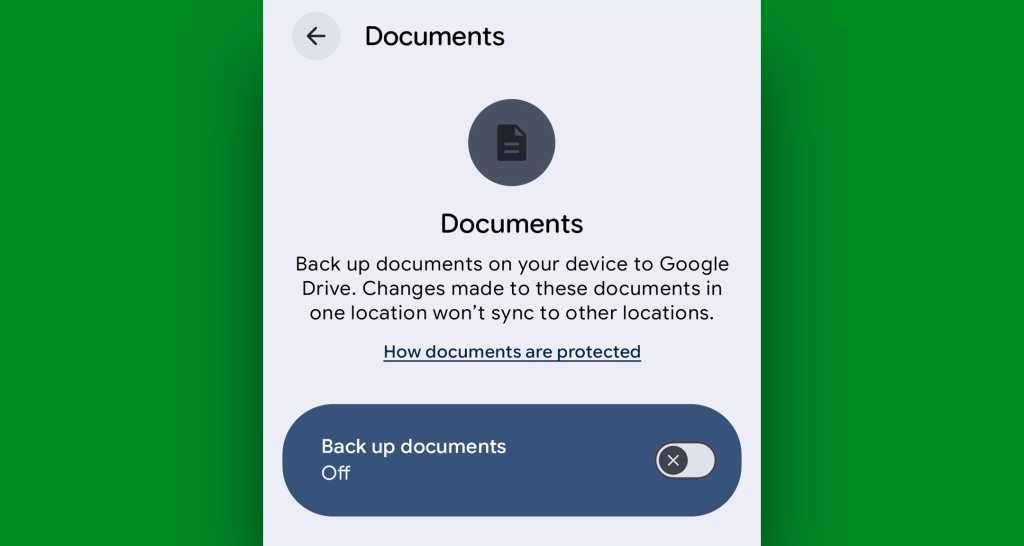
Well, take a moment to join me in celebration: Amidst all the (and that often falls somewhere between ), Google’s giving us a major upgrade to Android’s backup capabilities right now. It’s a simple-seeming switch buried in your system settings, and it’s up to you to find and activate it.
Once you do, though, those once-orphaned documents on your Android device’s local storage will be perpetually synced and protected, automatically, without any ongoing thought or effort.
All you’ve gotta do is find and flip that one new switch.
[Don’t let yourself miss an ounce of Android Intelligence. .
That brings us to today. Right now, as we speak, Google’s in the midst of sending out a quiet under-the-hood update that (brace yourself…) adds in the option to automatically sync and back up any documents on your device as a native part of Android’s backup setup.
See?
JR Raphael, Foundry
The option is on its way to all devices running 2018’s older than that, you’re now a whopping eight years out of date, and you have to make sure you’re in solid shape and look to the — after enabling sync in general, be sure to look in the app’s “Collections” areas to find the “On this device” folder and then flip the toggle to “Backup all device folders” (or get more nuanced and open specific individual on-device folders if you want to sync some but not all of those areas) — and you can still turn to — one new thing to try each week, straight from me to you.

SOCIAL SHARE CARD GENERATOR