Pressing Ctrl+C once and having it fail to copy anything isn’t a bug you imagined. Microsoft’s clipboard history service listens for changes asynchronously, which means a second copy can happen before the system finishes logging the first one. The company calls this design choice intentional, at least for the Clipboard history integration.
Like most of you, I have the habit of pressing Ctrl and C multiple times just to be sure something copied, and that habit hasn’t gone away even on Windows 11. Pressing it once should be enough, but it doesn’t always work, and for the longest time I assumed it was just me being paranoid. Turns out plenty of people have the same reflex.
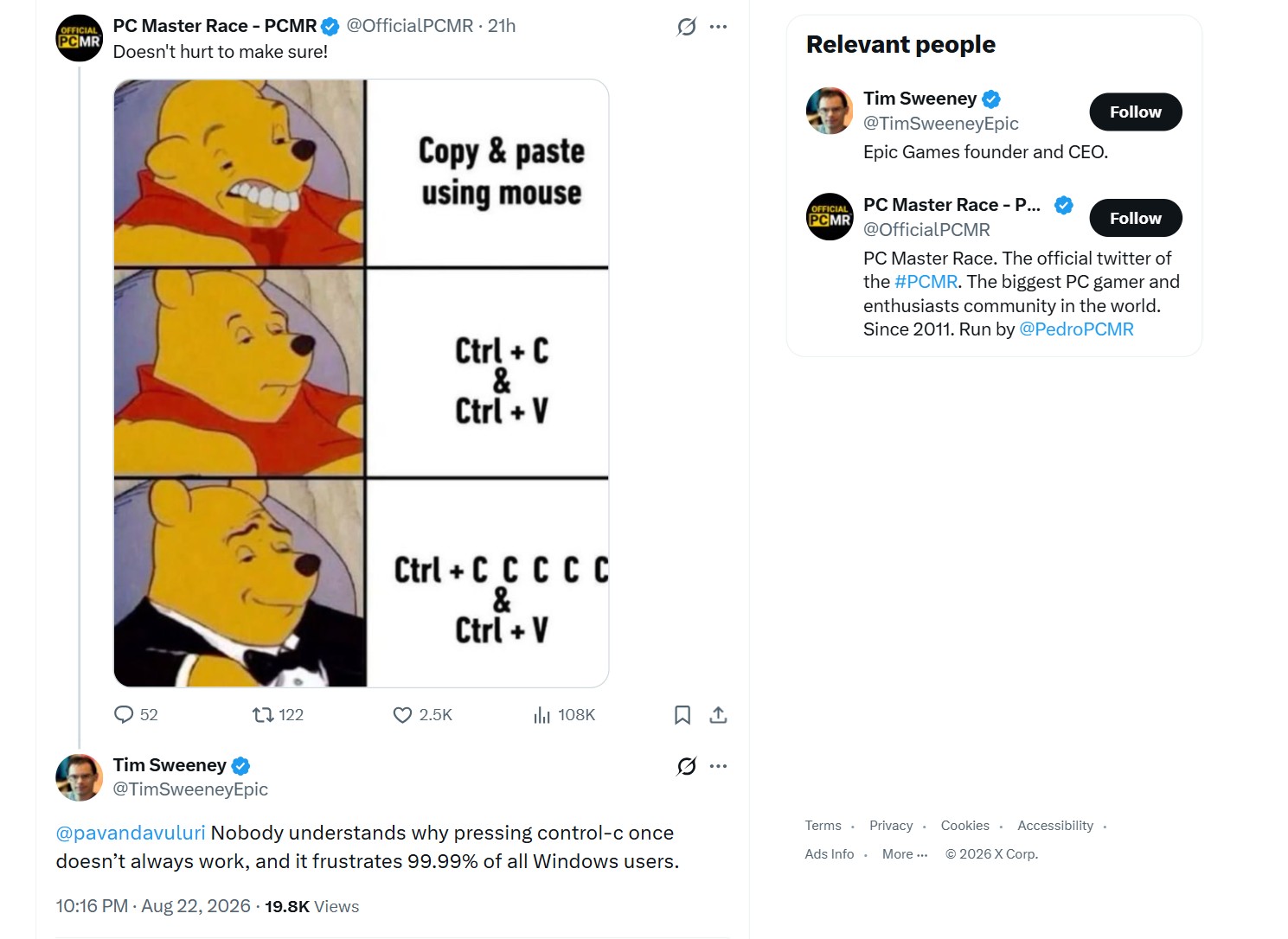
A meme from PC Master Race on X poking fun at people who mash Ctrl+C multiple times before pasting went viral just yesterday. Epic Games CEO Tim Sweeney replied, tagging Microsoft’s Pavan Davuluri: “Nobody understands why pressing control-c once doesn’t always work, and it frustrates 99.99% of all Windows users.”
Davuluri hasn’t responded as of writing. However, we found that Microsoft’s Raymond Chen, a senior software engineer who has worked on Windows for more than three decades, already answered the question to some extent, making this as official as it gets.
Why Ctrl+C can fail to copy anything at all
As you know, when you select something and press Ctrl+C, the content gets copied to the clipboard, which is a shared resource, and Windows only lets one program hold it open at a time.
If a program calls OpenClipboard and then doesn’t call CloseClipboard, either through a bug or because it crashed mid-operation, every other app trying to copy or paste the Remote Desktop clipboard redirector, rdpclip.exe, as a repeat offender, along with certain Virtual PC clipboard integration tools of that era. They were not doing anything malicious, but opened the clipboard to sync content between a host and a guest session, then failed to let go of it, and every other program’s Ctrl+C stopped working until that specific process got killed or restarted.
This still shows up on Windows 11 today, just with a rotating cast of culprits. Users troubleshooting the Ctrl+C issue on , both known for running clipboard-like services we didn’t ask for.
The fix hasn’t changed since Chen’s explanation. Open Task Manager and start closing suspicious background apps one at a time until copy and paste comes back to life.
In short, what happens here is Ctrl+C fails to copy because Windows cannot open the clipboard long enough to write your new content into it. However, this is completely different from what happens with Clipboard History.
Why Windows clipboard history misses rapid Ctrl+C presses
In 2025, Microsoft’s Raymond Chen walked through a sample program that copies three separate strings to the clipboard one after another, intending to preload all three into Clipboard History for quick access later. Only the last string ever makes it in.
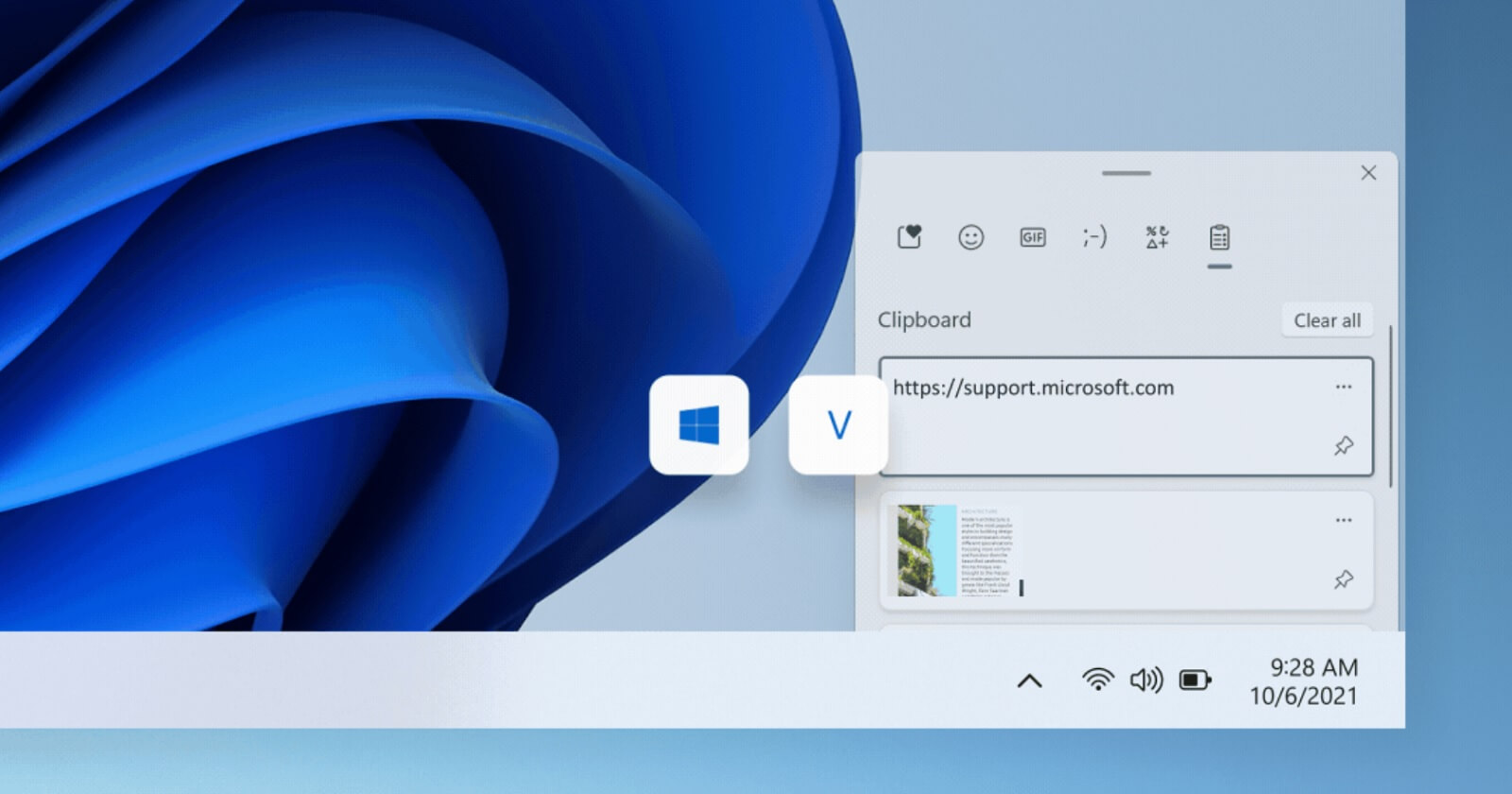
The clipboard history service listens for changes through a Windows function called AddClipboardFormatListener, which notifies a program only after the clipboard has already changed. Chen explained that this notification arrives asynchronously, so by the time the history service is told about the first copy, the clipboard may have already changed a second or third time. The service ends up recording only whatever is there on the clipboard at the moment it checks, not everything that passed through it.
The older clipboard viewer system wasn’t like this, as it got notified the instant the clipboard changes. Chen noted that synchronous notification comes with a real cost. A program that misbehaves while shown a clipboard update can freeze or slow down the clipboard for every other app. Async notification doesn’t face this issue, but at the cost of missing rapid intermediate Ctrl+C presses.
Chen , Chen showed how a program can wait for each clipboard change to register before making the next one. The trick depends on the Clipboard.HistoryChanged event from the WinRT clipboard API, which fires whenever the history service finishes processing a change.
The sample code sets up a dispatcher queue to act as a UI thread, since the WinRT clipboard APIs require one, then creates a Windows event object that gets signaled every time HistoryChanged fires. After writing each string to the clipboard, the program waits on that signal before writing the next one, guaranteeing the history service has caught up before moving on. Chen mentioned this as only a sketch of a full solution, since a user manually clearing their history mid-run would leave the program waiting for a non-occurring event.
This asynchronous handoff is also, oddly enough, the mechanism that lets
